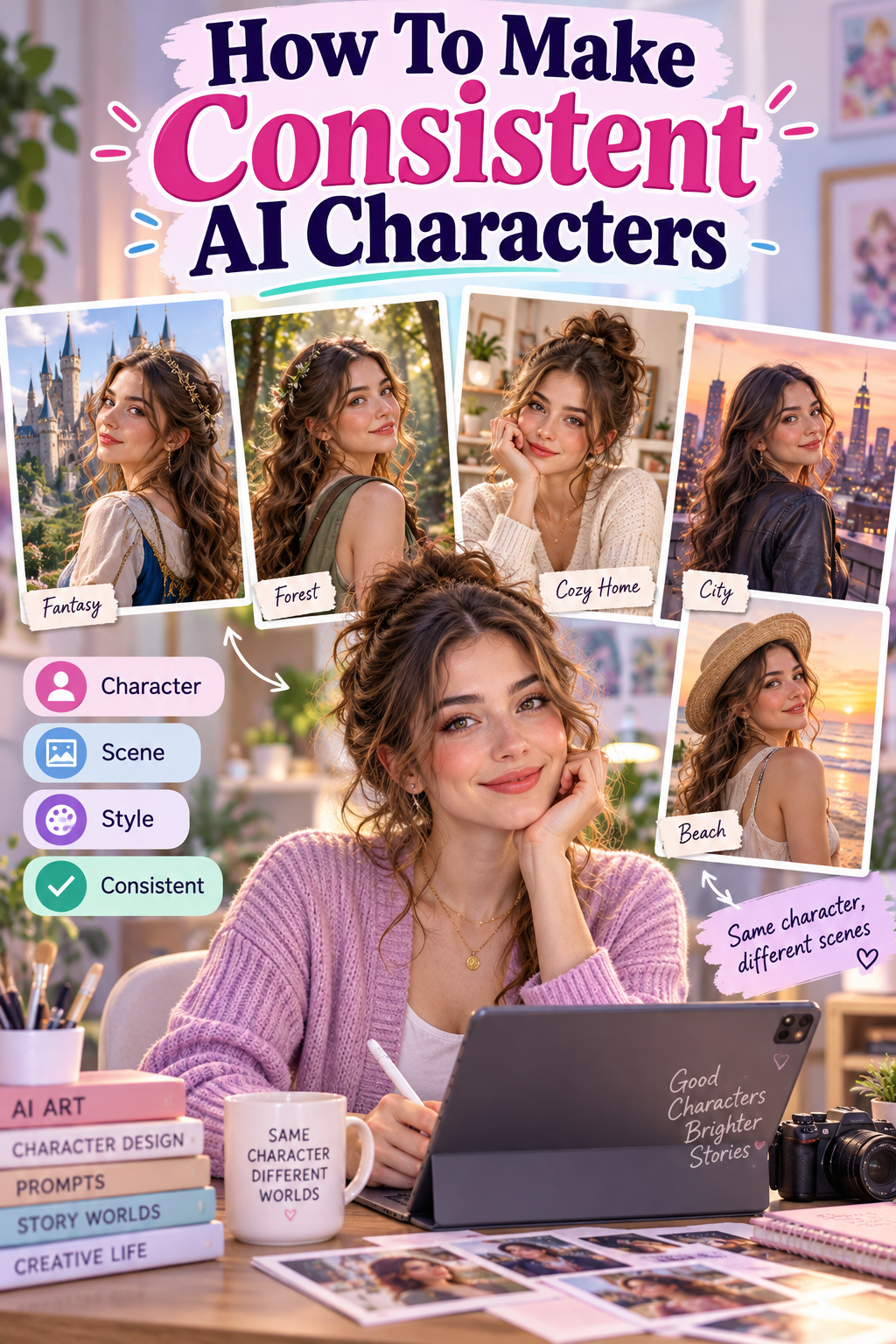
Creating an AI character is easy.
Keeping that character recognizable across multiple images can be more difficult.
A character's face, hair, body characteristics, or other visual details may change between generations, even when the prompts are similar.
Consistent Characters help maintain a recognizable character appearance across different generations.
Instead of rebuilding the same character every time, you can create and save a Character, then select it when generating new scenes, poses, and ideas.
This can be especially useful for:
→ Consistent Characters Feature LP
What Is AI Character Consistency?
AI character consistency means keeping the defining visual features of a character recognizable across multiple generations.
For example, imagine your character has:
You may want to generate that same character:
The scene can change while the core character remains recognizable.
Without a character consistency workflow, those defining features may change between generations.
Why Does Character Consistency Matter?
Character consistency becomes more important when you are creating more than one image.
If a character looks completely different in every generation, it can be difficult to use them across a story or collection.
Consistent characters can help create stronger continuity.
For example:
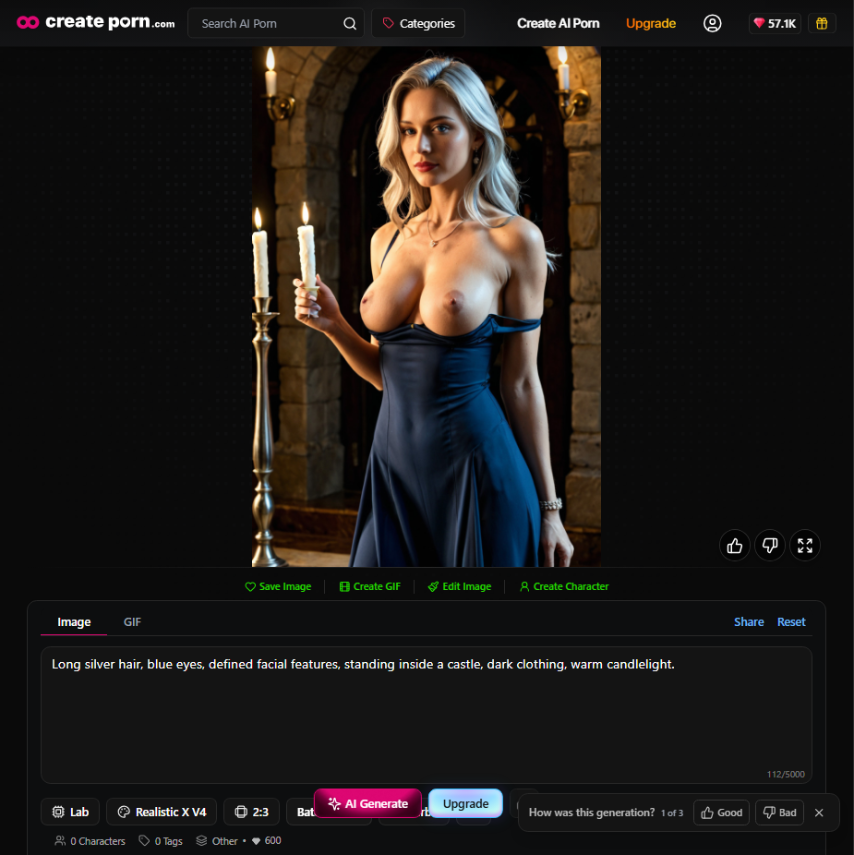
Scene One:
Character standing inside a castle.
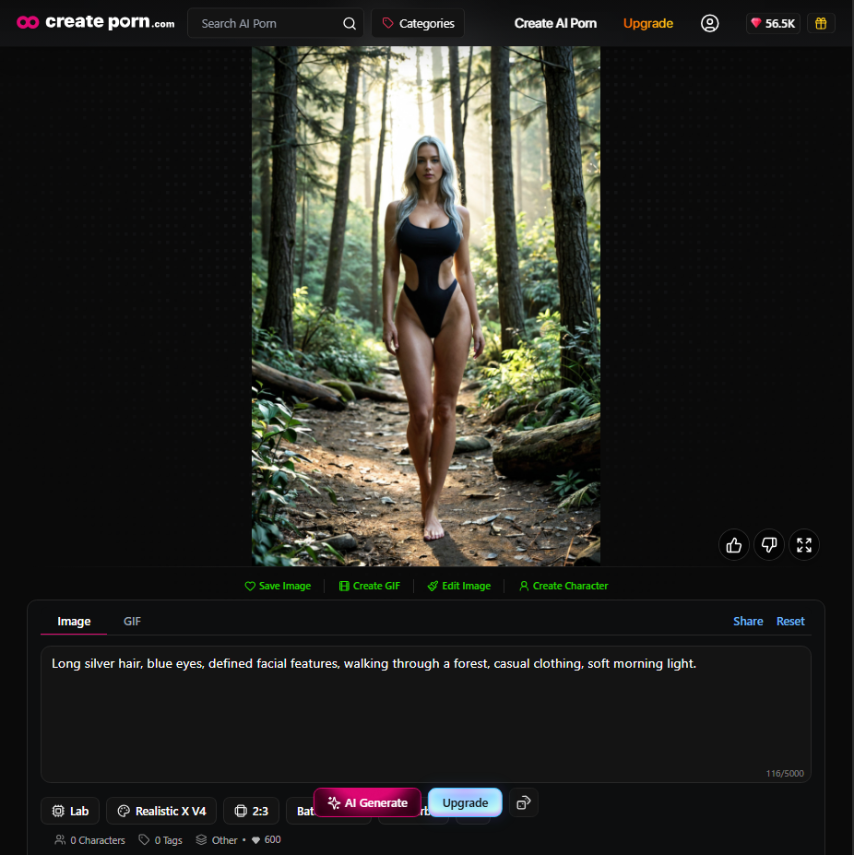
Scene Two:
Same character walking through a forest.
Scene Three:
Same character sitting beside a campfire.
The pose and environment change, but the character should still look recognizable.
This is particularly useful for creators building recurring characters rather than individual unrelated images.
How Consistent Characters Work
Createporn's Consistent Characters feature lets you create a reusable Character in two ways:
Once generated, you can review three Character versions, choose the one you prefer, and save it for future generations.
Option 1: Create a Character From a Description
You can build a Character using written physical details.
Focus your description on recognizable appearance features.
For example:
“Long silver hair, blue eyes, warm skin tone, defined facial features.”
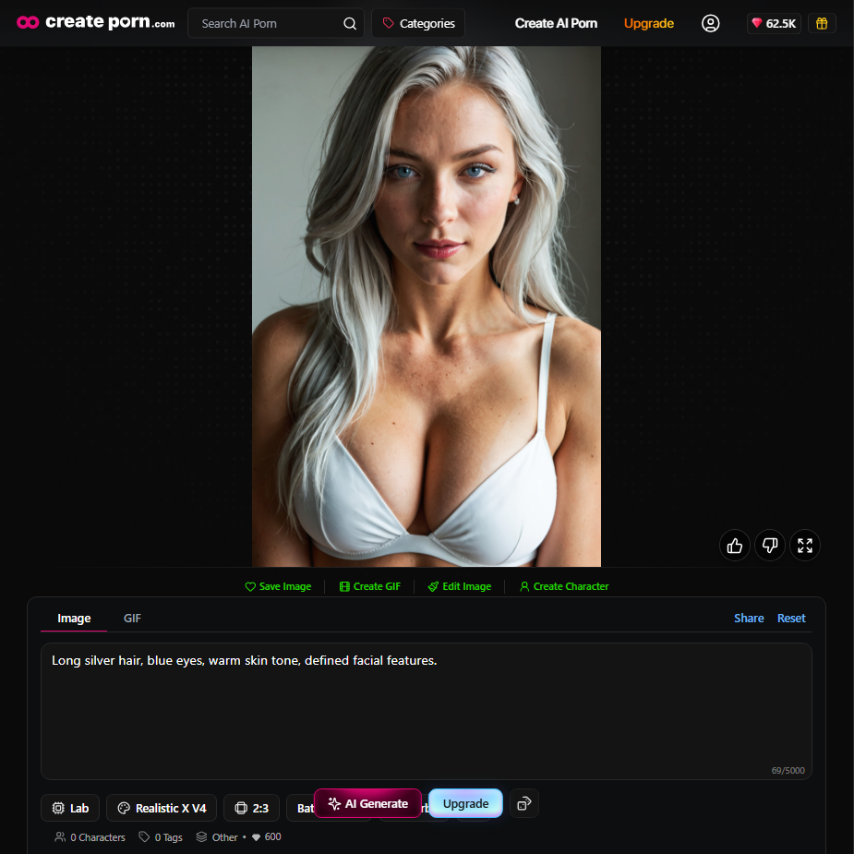
Useful details can include:
Keep the Character Description focused on the Character itself.
Avoid adding unnecessary scene information such as:
These details can be added later when generating individual scenes.
The current feature does not support outfit or costume recognition as part of Character creation, so clothing should generally be handled in the Generation Prompt instead.
Option 2: Create From a Reference Image
You can also use one of your existing Creations as a Reference Image.
Choose an image where the Character's important physical features are clearly visible.
A good Reference Image should make it easy to identify:
Avoid references where the Character is:
A clearer reference gives the feature more useful visual information to work with.
How To Create a Consistent Character
The basic workflow is simple.
`
Step 1: Choose Your Style
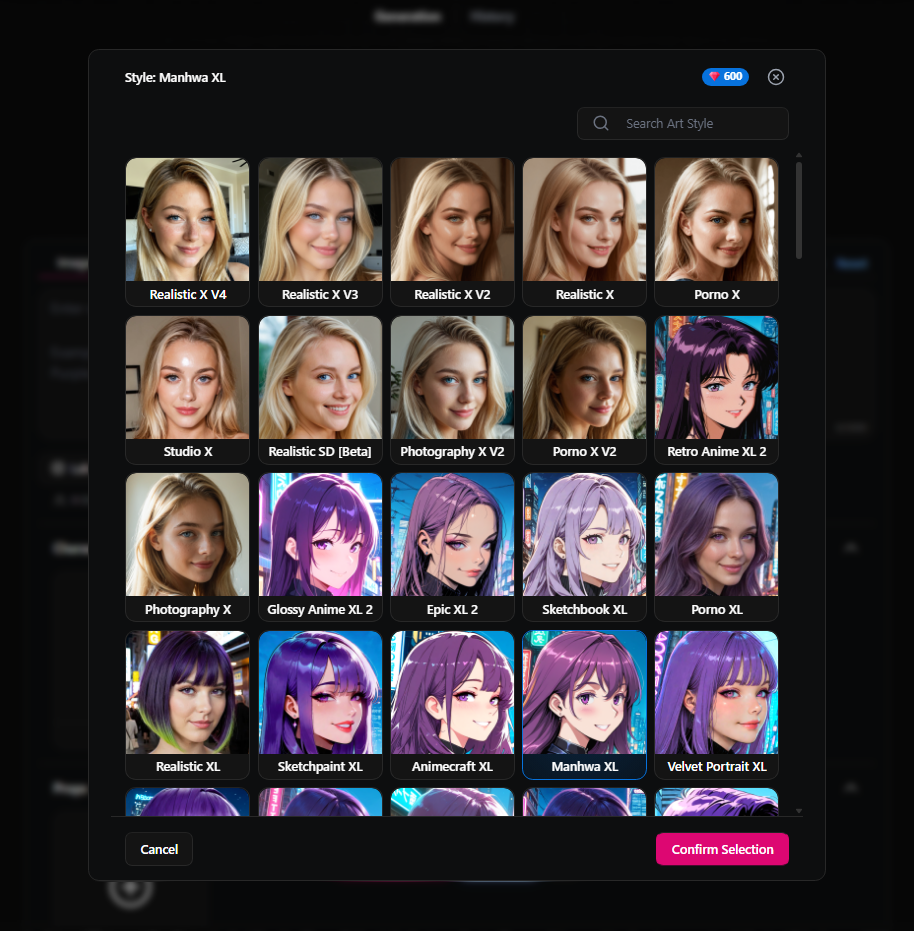
Open the Create page and select the Style you want to use.
Then open the Consistent Characters section.
Step 2: Create Your Character
Select Create.
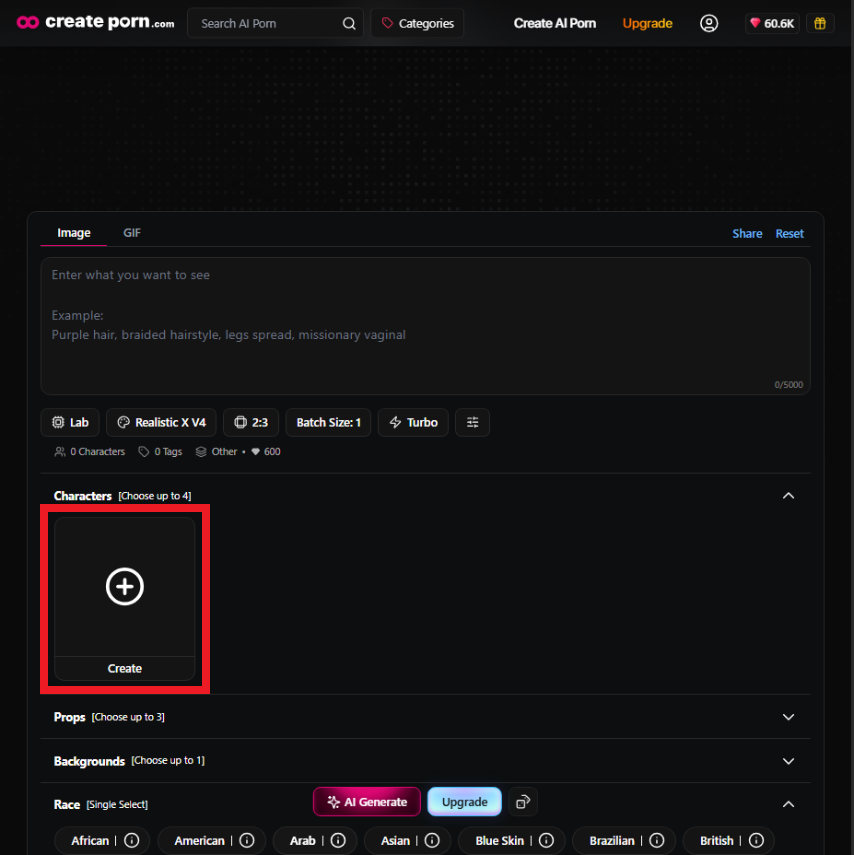
Choose either:
Step 3: Add the Character Information
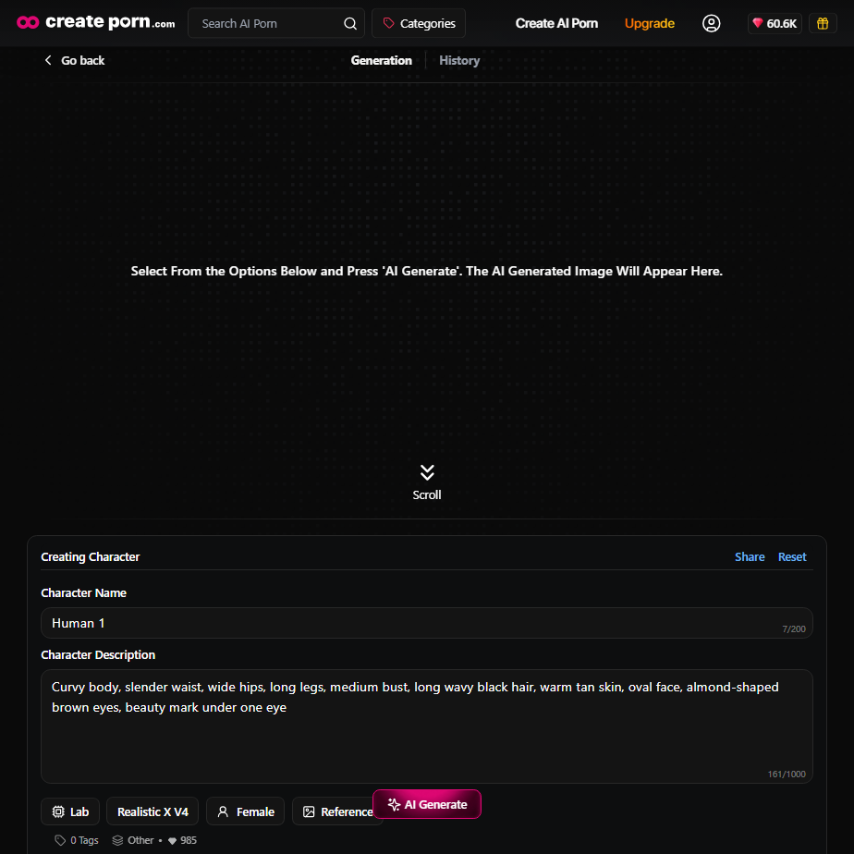
If using a description, focus on physical characteristics.
If using a Reference Image, select one of your existing Creations.
Step 4: Generate
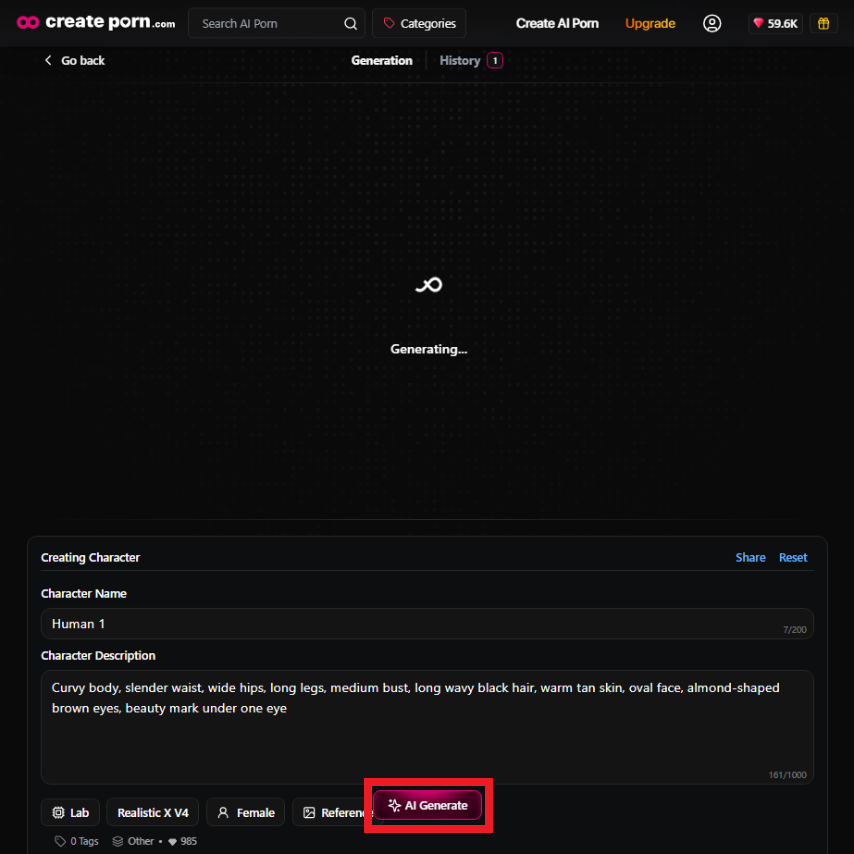
Generate the Character.
Three Character options will appear.
Step 5: Choose Your Preferred Version
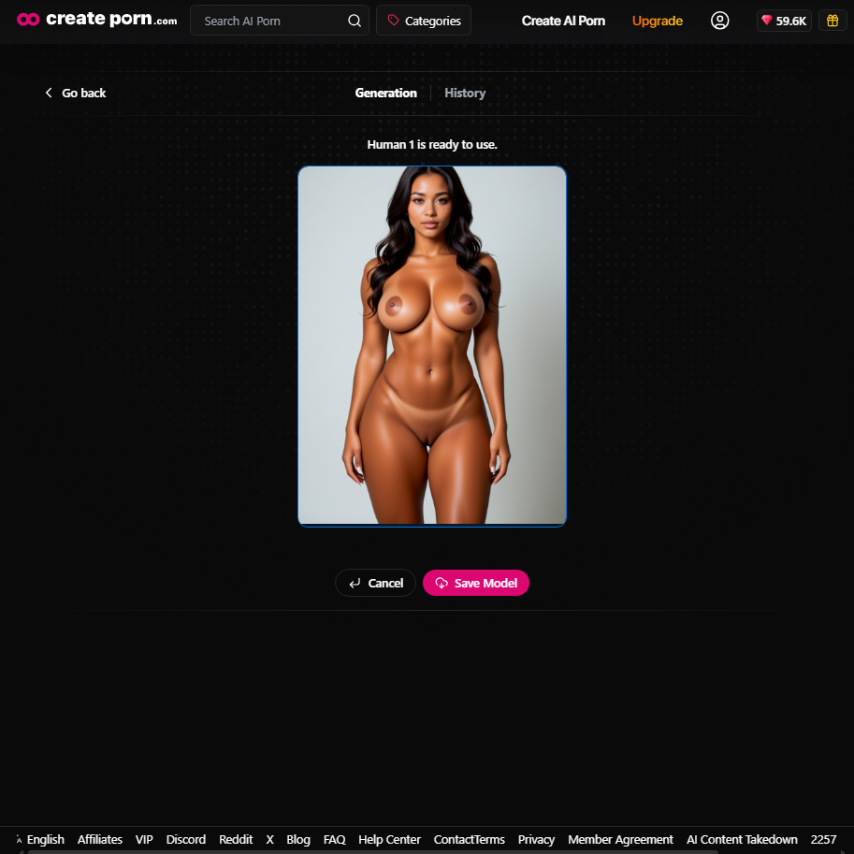
Compare the available Character options and select the version that best matches the design you want.
Step 6: Save the Character
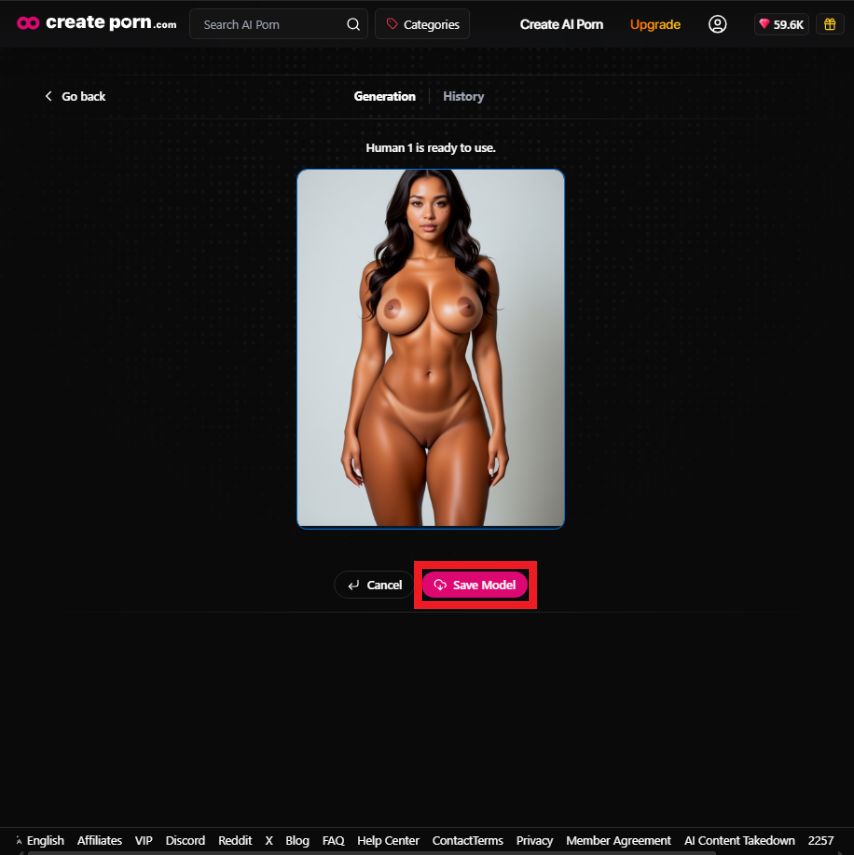
Save your selected Character.
It will then become available in the Consistent Characters section for future generations.
How To Use Your Character in New Images
Once the Character is saved, you can use it across different generations.
1. Select Your Style
For the most consistent results, use the same Style used when creating the Character.
Characters can be used with other Styles, but appearance and consistency may vary.
2. Select Your Saved Character
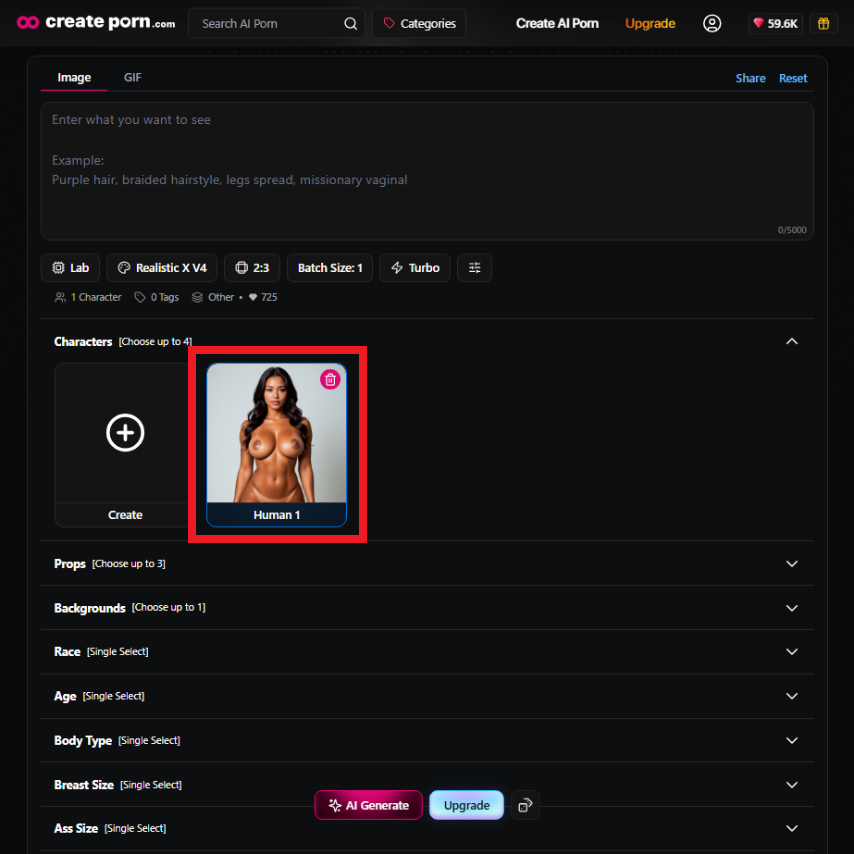
Open the Consistent Characters section and choose the Character you want.
Make sure it is active before generating.
3. Describe the New Scene
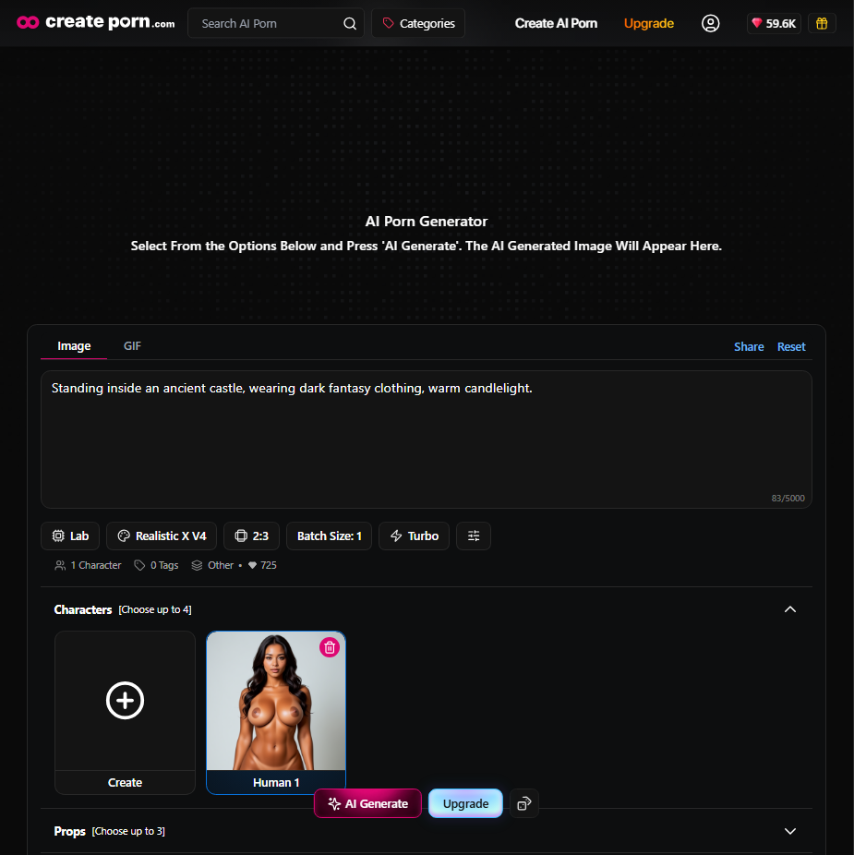
Now use your Prompt or Tags to describe what changes.
For example:
“Standing inside an ancient castle, wearing dark fantasy clothing, warm candlelight.”
Or:
“Walking along a beach at sunset, casual summer clothing, golden-hour lighting.”
You do not need to repeat all of the Character's saved physical features in every Generation Prompt.
4. Generate
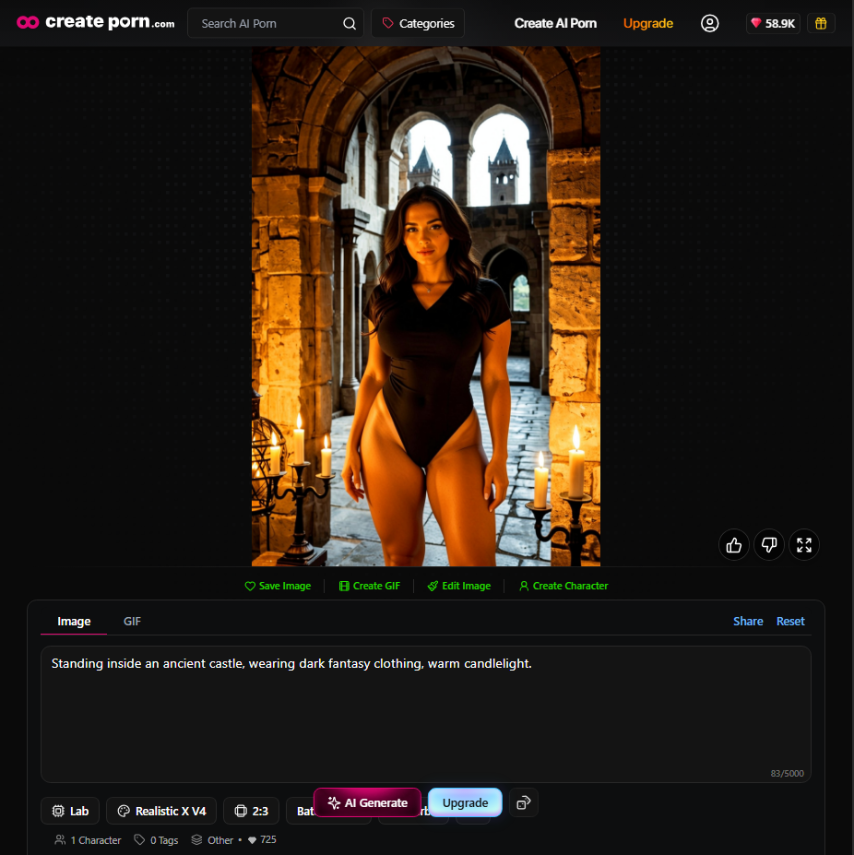
Generate the new scene with your Character selected.
Keep Character Details Separate From Scene Details
One of the easiest ways to manage consistent characters is to separate permanent Character details from scene details.
Character Details
These define who the Character is:
Scene Details
These can change between generations:
For example:
Character:
Long silver hair, blue eyes, defined facial features,
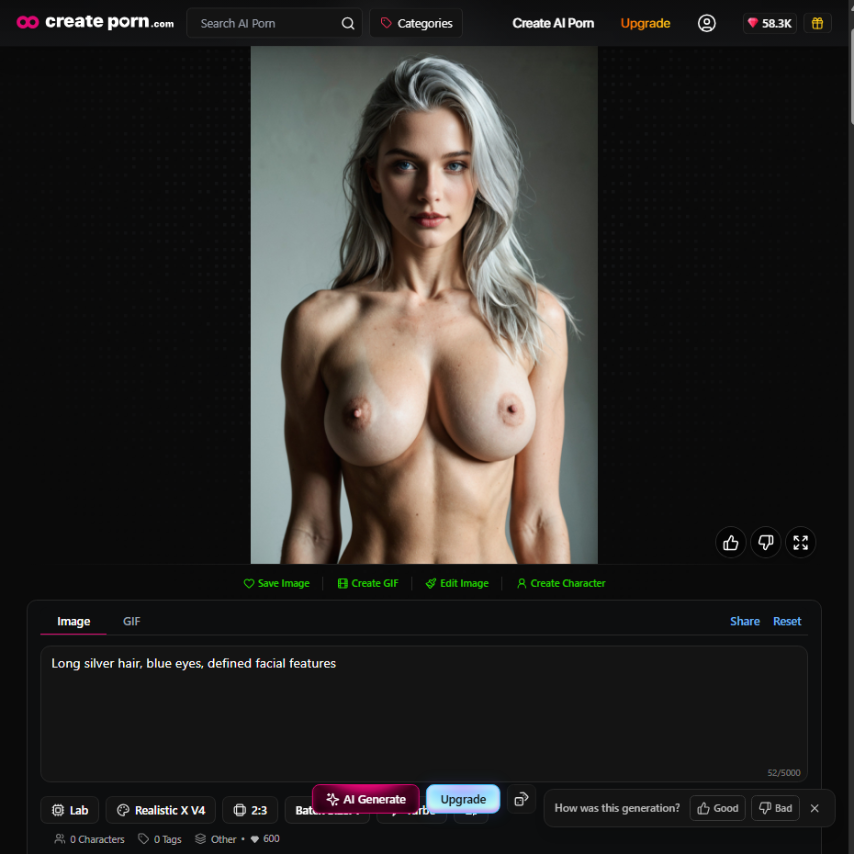
Scene One:
Standing inside a castle, dark clothing, warm candlelight.
Scene Two:
Walking through a forest, casual clothing, soft morning light.
Scene Three:
Standing on a rooftop, evening clothing, city lights at night.
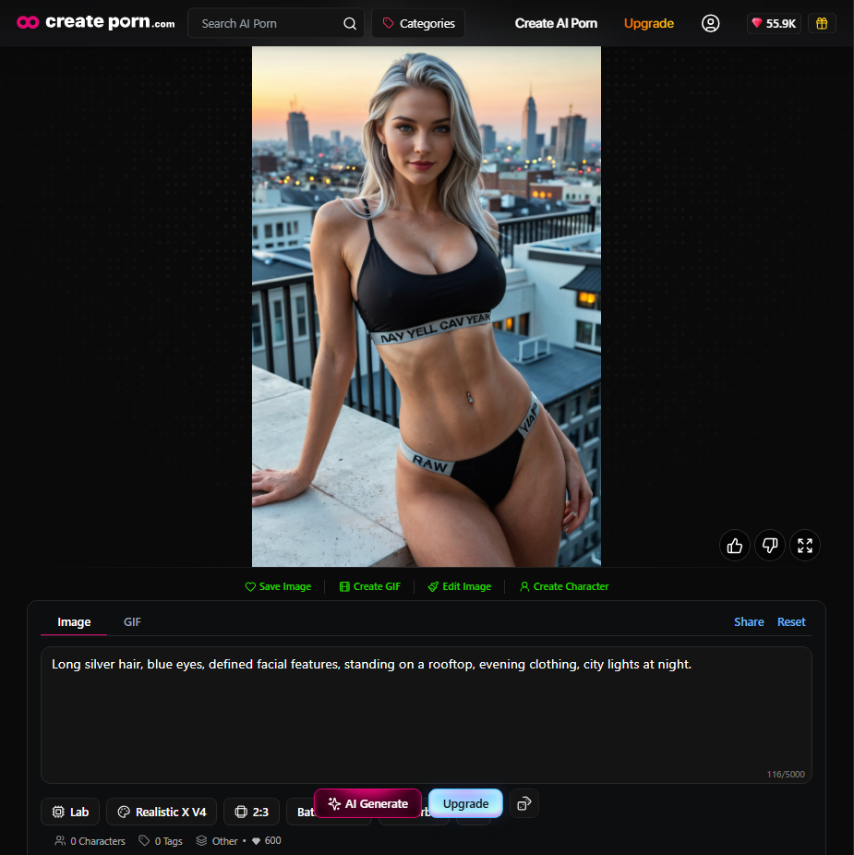
The scene changes while the underlying Character remains the same.
Tips for More Consistent AI Characters
Use Clear Physical Descriptions
Focus on visible characteristics that help distinguish the Character.
Instead of:
“Beautiful woman.”
Use:
“Long wavy black hair, bright green eyes, warm skin tone, defined facial features.”
Avoid Scene Details in the Character Description
Do not describe where the Character is standing or what they are doing when creating the Character.
Save those instructions for the Generation Prompt.
Use a Clear Reference Image
If creating from a Reference Image, choose one where the Character is easy to see.
Keep the Same Style
Using the same Style can help maintain stronger visual continuity.
Changing Styles can change how the Character is interpreted.
Change One Scene at a Time
Keep the Character selected and adjust scene-specific information such as pose, clothing, environment, or lighting.
This makes it easier to create variations without rebuilding the Character.
Why Can a Consistent Character Still Look Different?
Consistent Characters can improve continuity, but AI generation still contains variation.
Differences may occasionally appear in:
Using a different Style can also affect the Character's appearance.
For stronger continuity:
Character consistency improves control, but it does not mean every generation will be completely identical.
Common Character Consistency Mistakes
Recreating the Character Every Time
If you already have a saved Character, use it instead of rewriting the appearance from scratch for each image.
Changing Styles Frequently
Different Styles can interpret the Character differently.
Keep the visual direction stable when consistency matters.
Using a Poor Reference Image
A Character that is difficult to see gives the system less useful visual information.
Adding Scene Details to the Character Description
Locations, actions, and poses belong in the individual Generation Prompt.
Forgetting to Select the Character
Make sure your saved Character is active before generating.
Frequently Asked Questions
What is a Consistent AI Character?
A Consistent AI Character is a saved Character designed to maintain recognizable physical traits across multiple AI generations.
How do I create a consistent character?
Create the Character from either a written physical description or one of your existing Creations as a Reference Image. Generate the available options, select your preferred version, and save it.
Should I describe the character again in every prompt?
No. Once the Character is saved and selected, your Generation Prompt can focus on scene-specific details such as clothing, pose, environment, and action.
Can I use the same character with different Styles?
Yes, but results may vary. Using the same Style used to create the Character generally provides a more consistent visual direction.
Why does my character still change between images?
AI generation contains variation. Different Styles, prompts, poses, and environments can influence the final appearance.
Can I create a Character from an existing image?
Yes. You can use one of your existing Creations as a Reference Image when creating a Consistent Character.
Does using Consistent Characters cost extra Gems?
Yes. The current Help Center documentation lists an additional 125 Gems per generation when using a Consistent Character.
Create Consistent AI Characters Across Different Scenes
You do not need to rebuild the same Character every time you create a new image.
Start with a clear Character description or Reference Image.
Choose the version you want to keep.
Save the Character.
Then use that Character across different poses, clothing, environments, and scenes.
Keeping the Character stable while changing the scene gives you a more controlled way to build recurring fictional characters across multiple generations.
→ Start Creating With Consistent Characters