The Complete AI Prompt Guide: How to Write Prompts for Images, Characters, Edits, and Video
How to write AI prompts, AI prompt examples, AI image prompts, AI video prompts, negative prompts, AI prompt formula, prompt engineering for AI art
On this page
The Complete AI Prompt Guide: How to Write Prompts for Images, Characters, Edits, and Video
A strong AI prompt turns an idea into clear visual instructions. It tells the generator what to create, which details matter most, and how the result should look or move. A weak prompt leaves too much open to interpretation—or asks for so many competing details that the main idea gets lost.
This complete AI prompt guide brings Createporn's core prompting resources into one place. You will learn how to write prompts for images, combine prompts with Tags, use negative prompts, define consistent fictional adult characters, direct local image edits, animate images, and troubleshoot results that do not follow your instructions.
The most important principle is simple: start with one supported idea, describe it clearly, and add details gradually.
Primary internal link → AI Generator or Create landing page
AI Prompt Guide at a Glance
Use the prompt type that matches the job you want the generator to perform.
- Prompt type: Image prompt
What it controls: Subject, appearance, pose, composition, setting, lighting, and style
Simple formula: Subject + appearance + action + composition + setting + lighting. - Prompt type: Negative prompt
What it controls: Unwanted visual elements or qualities
Simple formula: Unwanted feature + artifact + conflicting element. - Prompt type: Character description
What it controls: Recognizable physical identity for a reusable character
Simple formula: Face + hair + eyes + body type + defining traits. - Prompt type: Inpainting prompt
What it controls: What should appear inside a masked part of an image
Simple formula: Replacement + appearance + local context. - Prompt type: GIF prompt
What it controls: Motion added to a still image
Simple formula: Main action + motion layers + image/style match. - Prompt type: Video prompt
What it controls: Subject movement, camera direction, mood, sound, and constraints
Simple formula: Subject + movement + environment + camera + style + audio + constraints.
These formulas are starting points, not requirements. Use only the parts that materially affect the result.
What Is an AI Prompt?
An AI prompt is an instruction that guides a generative model. For visual generation, prompts usually describe visible details rather than abstract intentions.
For example, “make it attractive” is subjective and gives the generator little visual direction. A more useful image prompt might specify a fictional adult subject, expression, clothing, pose, camera framing, location, and lighting.
Prompts can control different tasks:
- Creating a new image
- Defining a reusable character
- Excluding unwanted details
- Replacing one part of an image
- Adding movement to an existing image
- Directing camera movement and audio in a video
The wording that works for one task may not work for another. An image prompt describes what should be visible in a still frame. A video prompt should focus on what moves and how. An inpainting prompt should describe only the local change inside the masked area.
How to Write a Good AI Image Prompt
A clear image prompt usually moves from the main subject to the surrounding scene:
Subject + visible appearance + clothing + pose or action + composition + setting + lighting + visual style
For example:
fictional adult woman, long auburn hair, green eyes, black evening dress, relaxed pose, waist-up portrait, elegant hotel lounge, warm cinematic lighting, realistic photography,
This structure works because each phrase has a visual purpose. The subject comes first, followed by the details that define the person, the action, and the finished image.
1. Start With the Main Subject
Identify who or what should be central to the image. If people are included, state their number and describe them as fictional adults where relevant.
Examples:
- fictional adult woman
- two fictional adult characters
- athletic fictional adult man
- fantasy-inspired fictional adult character
Beginning with the subject gives the rest of the prompt a clear anchor.
2. Add the Most Important Visible Features
Choose a small number of recognizable details, such as:
- Hair color and hairstyle
- Eye color
- Facial expression
- Body type
- Clothing and clothing color
- One or two distinctive accessories
Prioritize details that a viewer could actually see. Avoid stacking several near-synonyms or repeating the same feature.
3. Describe One Compatible Pose or Action
Use a specific, visually understandable action. “Standing with hands on hips” is clearer than “posing confidently.”
When a pose is complex, test the broader version first. Add precise limb placement or interaction details only after the generator produces the main pose reliably.
4. Choose the Composition
Composition tells the generator how the image should be framed. Useful details may include:
- Close-up
- Waist shot
- Full-body view
- Eye-level angle
- Low-angle view
- Over-the-shoulder view
- Centered composition
- Point-of-view framing
Use one compatible camera angle and one viewing distance. Several competing compositions can weaken the result.
5. Finish With the Scene and Lighting
Add the location, time of day, weather, background, and lighting only when they matter.
For example:
modern apartment, evening, city lights through the window, soft warm interior lighting,
Keep related details close together. If color matters, attach it to the correct object: white blouse, blue skirt, black hair is clearer than listing colors separately.
6. Add Style Selectively
Finish with a coherent visual direction, such as realistic photography, cinematic lighting, anime illustration, or soft editorial portraiture. Avoid combining styles that point in opposing directions.
How to Create an Image With a Prompt on Createporn
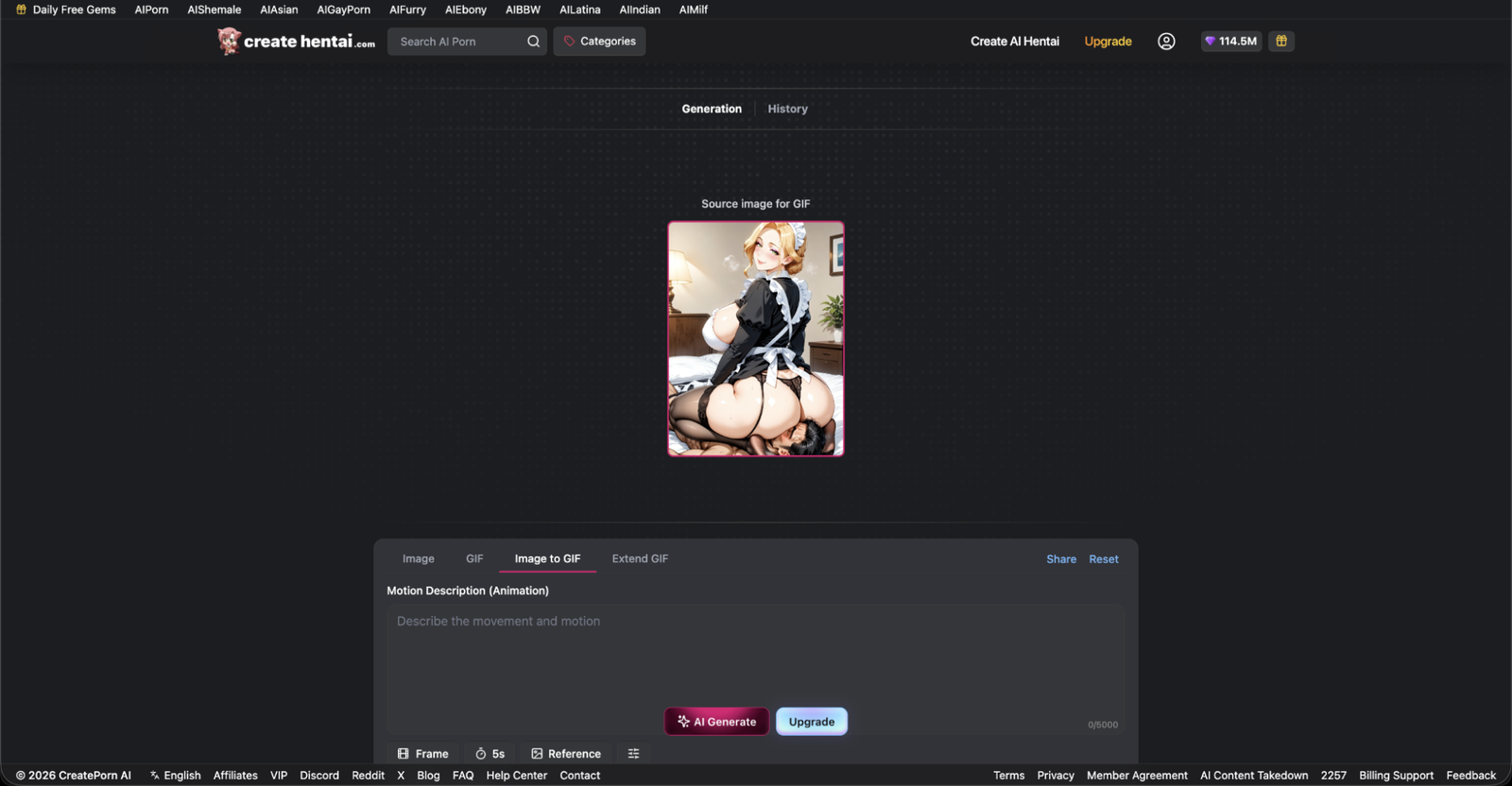
Based on the current Create-page interface previously reviewed for this article series:
- Select Create AI Porn in the upper-right corner of the website.
- Select the Image tab.
- Enter your prompt in the Enter what you want to see box.
- Choose your preferred Style.
- Add any Characters, Tags, or generation settings you want to use.
- Select AI Generate to create the image.
Tags and additional settings are optional. Begin with one image before using larger or repeated generation options.
How to Use Prompts and Tags Together
Custom prompts provide flexible written instructions. Tags provide prewritten options for common details. On Createporn, Tags can cover
areas such as:
- Subject appearance
- Physical attributes
- Clothing
- Poses or actions
- Viewing distance and camera angle
- Location, weather, time, and lighting
Use Tags for supported concepts you can select directly, then use the written prompt for details that need more precision.
For example:
Selected Tags: Blonde Hair, Smiling, Fit, Hands on Hips, Waist Shot, Gym
Custom prompt:
fictional adult woman, high ponytail, white sports bra, blue yoga pants, visible muscle definition, modern gym, soft window light,
Review the Tag selection and written prompt together. If the prompt requests one hair color while a Tag requests another, the generator receives conflicting guidance.
Internal link → Best AI Porn Prompts Guide
How to Use Negative Prompts
A negative prompt tells the generator which visual details to reduce or avoid. It complements the main prompt:
- The main prompt describes what should appear.
- The negative prompt describes what should be less likely to appear.
Negative prompts do not guarantee complete removal. They lower the likelihood of an unwanted feature, and availability depends on the selected model. Createporn's current support guidance notes that some newer models do not provide negative prompts.
Negative Prompt Formula
Unwanted anatomy or artifact + unwanted object + unwanted visual quality + conflicting element
Example:
Main prompt:
fictional adult woman, natural proportions, casual outfit, standing in a modern apartment, realistic photography, soft indoor lighting,
Negative prompt:
distorted hands, duplicate person, stretched body, text, watermark,
Start with a few terms connected to problems that actually appear.
Generate, review the result, and add or remove terms as needed.
A long generic negative prompt can suppress details you wanted to keep.
Negative Prompt Best Practices
- Use short, visual terms.
- Separate unwanted details with commas.
- Target repeated problems rather than imagined ones.
- Do not negate something required by the main prompt.
- Remove a term if it affects the wrong part of the image.
- Check whether the selected model offers the feature before writing instructions around it.
Internal link → What Are Negative Prompts? or dedicated Negative Prompt Guide
Prompt Strength and Prompt Adherence
Prompt Strength and Prompt Adherence can influence how strongly supported instructions affect a generation, but they do not teach a model a new concept.
Prompt Strength
Createporn's image-prompt guidance describes weighting an important keyword with parentheses and a value:
(pink hair:1.2)
Increase strength in small steps. Very high weights can distort or overprocess a result. Weight only the detail that needs more influence instead of wrapping the entire prompt.
Prompt Adherence
Prompt Adherence controls how closely the generator follows supported prompts and Tags. A higher setting can make instructions more influential, but it cannot force a Style to create an unsupported pose, action, object, or composition.
If a concept is missing, first simplify the prompt and verify that the selected Style recognizes it. Treat stronger settings as refinements, not repairs for unsupported ideas.
How to Prompt Consistent AI Characters
A Character Description and a generation prompt have different jobs:
- The Character Description defines a reusable physical identity.
- The generation prompt defines the current scene, clothing, action, pose, and environment.
Use this formula for a Character Description:
Face shape + hair + eyes + body type + recognizable physical traits
Example:
fictional adult woman, oval face, shoulder-length auburn curls, green eyes, athletic build, light freckles across the cheeks,
Keep actions, poses, locations, and scene details out of the Character Description. Createporn's current support article also states that outfit and costume recognition are not supported as saved character traits; add clothing to the generation prompt instead.
Once a Character is saved and selected, the scene prompt can stay focused:
black evening dress, standing beside a hotel window, waist-up portrait, city lights, warm cinematic lighting,
You do not need to repeat every saved physical feature. For better continuity, keep the Character selected and use the same Style when possible. Results can still vary between generations.
Internal link → How to Create AI Characters
How to Write AI Image-Editing Prompts
Inpainting changes a selected part of an existing image. The mask tells the editor where to work; the prompt tells it what should appear there.
Use this formula:
Replacement or correction + important appearance + local lighting, angle, or material
Examples:
- natural-looking hand, five fingers, matching skin tone and lighting
- silver necklace, delicate chain, resting naturally on the collarbone
- short black hairstyle, soft texture, matching the existing portrait lighting
- white blouse sleeve, natural fabric folds, matching the arm position
Keep an inpainting prompt local. Do not repeat the full scene prompt when only one small area is masked.
Createporn's Inpainting feature is currently labeled BETA in its support documentation. The verified workflow is to open an existing image, select Edit Image, mask the target area with the Brush, adjust Brush Size, enter a focused prompt under Advanced, and select Generate.
If an edit fails, refine both parts of the instruction: make the mask more precise and simplify the prompt.
Internal link → AI Image Editing Guide
How to Write AI GIF and Video Prompts
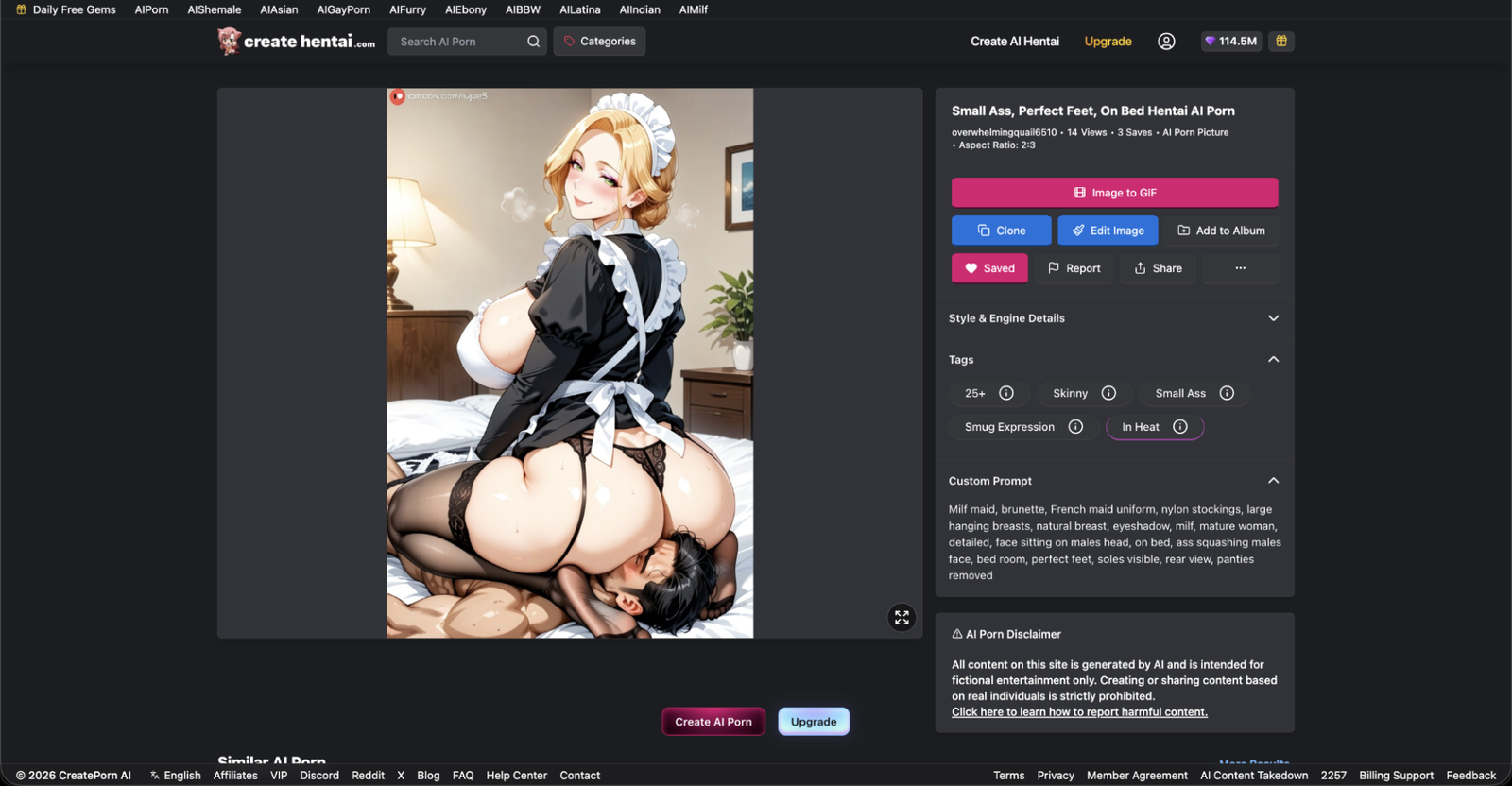
Image-to-video prompts should build on the starting image instead of trying to replace it. A clear base image gives the Engine a stable subject, pose, composition, and environment to animate.
GIF Prompt Formula
For short image animation, use:
Main action + motion layers + image/style match
Example:
the fictional adult character slowly turns her head and smiles, loose hair moves gently in the breeze, subtle fabric movement, preserve the original lighting, anatomy, and camera angle,
The motion should fit the pose and visible scene. A prompt that requires unseen limbs, a completely new angle, or a full-body repositioning is more likely to become unstable.
Video Prompt Formula
For a fuller image-to-video prompt, use:
Subject + movement + motion details + environment + camera movement + aesthetic + audio + constraints
Example:
the fictional adult woman walks slowly through the hotel lounge, her dress and hair move naturally with each step, the camera tracks beside her at waist height, warm cinematic lighting, quiet lounge ambience and soft footsteps, preserve facial identity and clothing, no extra people,
Direct the Motion
Name what moves, how it moves, and at what speed. Replace “make the image move” with a visible instruction such as “the character slowly turns her head to the right.”
Control the Camera
Use one main camera direction:
- Static camera
- Slow push-in
- Gentle pan left or right
- Tracking shot
- Slow pull-back
Several camera moves in a short clip can compete with the subject action.
Add Audio Only When Supported
If the selected Engine supports audio, describe dialogue, ambient sound, music, or effects separately from the visual movement. If audio is not supported—or not needed—leave it out.
Engine names and capabilities can change, so confirm the current options before publishing detailed comparisons.
Internal links → Best AI Video Prompts Guide and Image-to-Video AI Guide
A Better AI Prompt Testing Workflow
Prompt writing is an iterative process. Do not begin with every possible detail or repeatedly generate the same unsuccessful prompt.
1. Confirm the Main Concept
Use Createporn's Search function to look for similar creations, keywords, or Tags. Existing examples can help indicate whether a Style or Engine recognizes a related concept, although they do not guarantee identical results.
2. Start With One Simple Test
Test the subject, one important feature, and the setting first:
fictional adult woman, auburn hair, black dress, hotel lounge,
If the concept appears, add the next meaningful instruction:
fictional adult woman, auburn hair, black dress, hotel lounge, standing beside a window,
Then add composition and lighting:
fictional adult woman, auburn hair, black dress, hotel lounge, standing beside a window, waist-up portrait, warm cinematic lighting,
3. Change One Variable at a Time
If you change the prompt, Tags, Style, weights, adherence, and composition together, you cannot tell what improved or disrupted the result. Adjust one meaningful element and compare.
4. Stop When the Core Idea Is Unsupported
Change your approach when the main concept remains missing after you:
- Simplify the prompt
- Remove conflicting Tags
- Test supported wording
- Try a suitable alternative Style
- Reduce weights or complex instructions
More words, higher Prompt Strength, and stronger Prompt Adherence cannot force a generator to understand an unsupported concept.
Restricted Keywords and Moderation
Custom prompts are automatically reviewed before generation. A term may be filtered because it can be used in unsafe combinations, even when it appears harmless by itself.
If a compliant prompt is restricted:
- Read the warning shown by the platform.
- Check whether an approved Default Tag or Community Tag expresses the intended detail.
- Use clearer, policy-compliant wording.
- Request a compliant Community Tag for review when appropriate.
- Contact Support if the reason remains unclear.
Do not try to bypass moderation controls. Createporn does not publish a complete restricted-keyword list or assist with evasion.
Common AI Prompting Mistakes
Repeating the Same Keyword
Repetition adds noise and can overemphasize one detail. State it once, then use a small weight adjustment only if the feature is supported but consistently weak.
Combining Conflicting Instructions
Check the prompt, Tags, Character, Style, camera direction, and negative prompt as one setup. Remove contradictions before generating.
Adding Too Many Details at Once
Long prompts are not automatically better. Keep details that affect the image and add secondary elements after the main concept works.
Using Vague Language
Describe visible outcomes. Replace “dramatic” with the lighting, expression, composition, or movement that should create that effect.
Overusing Weights and Adherence
Strong settings can distort a result and cannot solve unsupported concepts. Adjust gradually.
Writing the Wrong Prompt for the Tool
An image prompt describes a frame. A Character Description defines identity. An inpainting prompt describes a local replacement. A video prompt directs movement. Match the instruction to the task.
Ignoring the Starting Image
For GIF and video generation, motion should fit the image's visible pose, anatomy, angle, lighting, and scene.
Regenerating Without Learning
If the same setup fails, do not repeat it unchanged. Simplify it, test a different supported term, or choose another suitable Style or Engine.
AI Prompt Examples by Task
AI Image Prompt
fictional adult woman, shoulder-length black hair, blue eyes, white blouse, relaxed smile, seated at a café table, waist-up composition, morning window light, realistic photography,
Image Prompt With Tags
Tags: Black Hair, Smiling, Waist Shot, Café
Prompt:
fictional adult woman, blue eyes, white blouse, seated beside the window, warm morning light, realistic photography,
Negative Prompt
duplicate person, distorted hands, stretched anatomy, text, watermark,
Character Description
fictional adult woman, heart-shaped face, long black waves, blue eyes, athletic build, beauty mark below the left eye,
Inpainting Prompt
thin gold bracelet, fitted naturally around the wrist, matching the existing light and perspective,
GIF Prompt
the character looks toward the camera and smiles softly, loose hair sways gently, subtle background light flicker, preserve the original pose and camera angle,
Video Prompt
the character rises from the café chair and walks toward the window, natural body movement, the camera slowly tracks backward, warm morning light, quiet café ambience, preserve facial identity and outfit,
Frequently Asked Questions
What is the best AI prompt formula?
For images, start with subject + appearance + action + composition + setting + lighting + style. For videos, focus on subject + movement + camera + aesthetic + audio + constraints. Remove any part that does not affect the result.
How long should an AI prompt be?
Use enough detail to define one coherent result. Short, focused prompts often work better than long prompts filled with repetition, conflicts, or minor details.
Should AI image prompts use sentences or keywords?
Createporn's support guidance recommends clear, comma-separated image-prompt details. Video prompts can use more natural phrasing when it makes movement, timing, camera direction, or audio easier to understand.
Does word order matter in AI prompts?
Put the subject and highest-priority instructions near the beginning. Keep related details together so colors, clothing, actions, and objects are easier to associate correctly.
What is the difference between a prompt and a Tag?
A prompt is a custom written instruction. A Tag is a selectable, prewritten instruction for a supported detail. You can use them together as long as they do not conflict.
What is a negative prompt?
A negative prompt lists details the generator should reduce or avoid. It does not guarantee removal, and it is not available with every model.
Can Prompt Strength make any idea work?
No. Prompt Strength can emphasize a concept the model already understands, but it cannot add an unsupported concept. Very strong weights may also distort the result.
Why is the AI ignoring part of my prompt?
The prompt may contain too many instructions, conflicting Tags, an unsupported term, a complex composition, or a concept the selected Style or Engine does not reliably generate. Simplify and test one change at a time.
Why was my prompt restricted?
Custom prompts are screened by automated moderation. Review the warning, use approved Tags or clearer compliant wording, and contact Support if you need help understanding the restriction. Do not attempt to bypass the filter.
Should I use the same prompt for images and videos?
No. The image already provides the video's visual foundation. An image-to-video prompt should primarily describe movement, camera behavior, audio, and what should remain stable.
Start Creating With Better AI Prompts
The best prompt is not the longest one. It is the clearest supported instruction for the tool you are using. Begin with one idea, use a formula that matches the task, test a single generation, and refine one detail at a time.
Ready to try these techniques? Open the [AI Generator] and build your first prompt from the formulas above.
Recommended supporting internal links:
- Best AI Porn Prompts Guide
- How to Write Better AI Image Prompts
- What Are Negative Prompts?
- How to Create AI Characters
- AI Image Editing Guide
- Image-to-Video AI Guide
- Best AI Video Prompts Guide
- Community Tags guide
- Prompt Testing guide