How to Design an AI Character
Learn how to design an AI character with a recognizable identity, clear personality cues, consistent appearance, visual style, and flexible backgrounds.
On this page
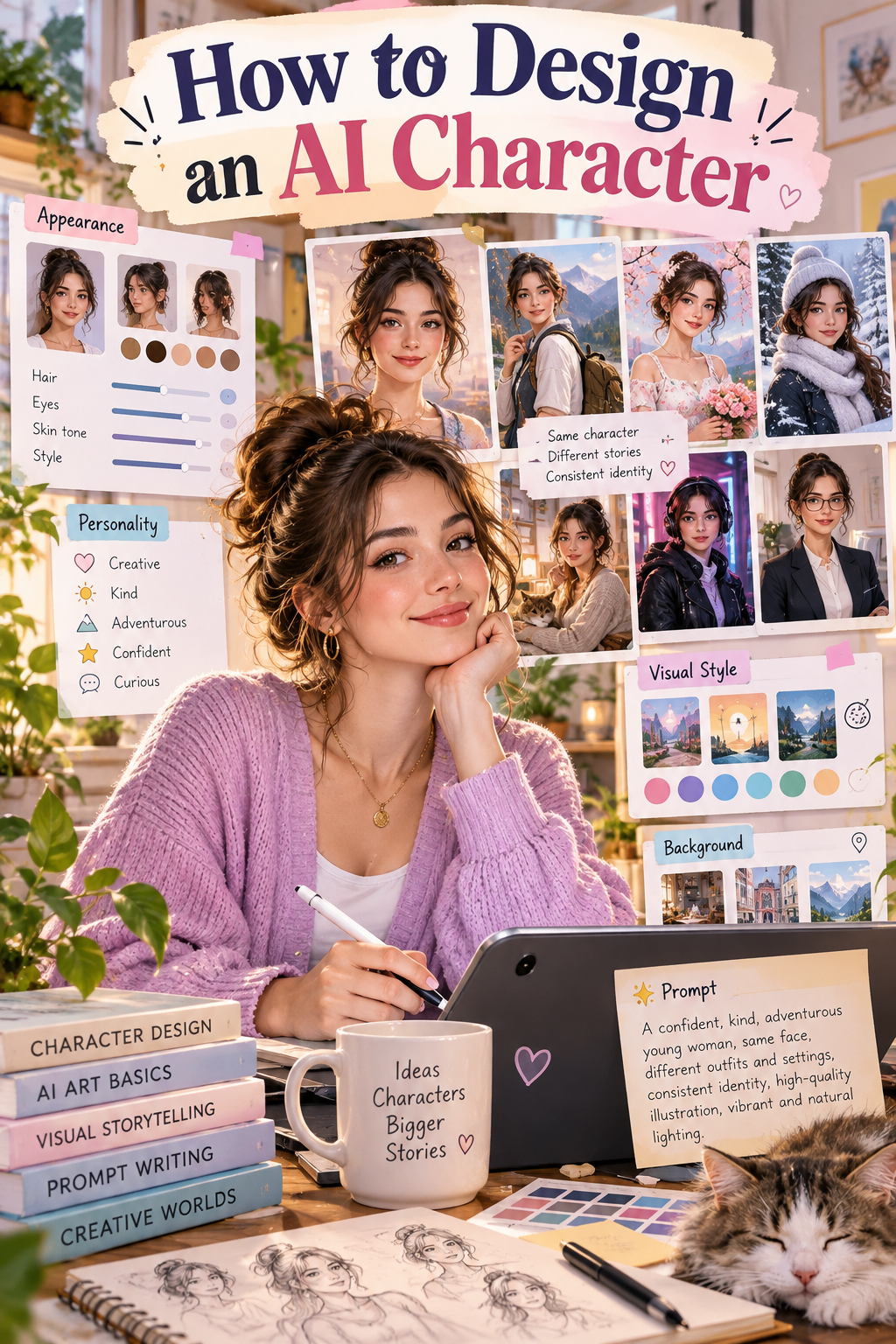
AI character design combines recognizable appearance, personality, visual style, and scene direction into one coherent creative concept. The goal is not simply to generate an attractive image. It is to create a character that viewers can recognize when the pose, clothing, expression, lighting, or background changes.
A useful character design separates stable identity from flexible scene details. Hair, eyes, body type, and distinctive facial features may help define who the character is. Pose, action, clothing, location, and lighting describe what the character is doing in a particular image.
Createporn's Consistent Characters feature supports this process by allowing creators to build a Character from a written description or an existing Creation used as a Reference Image. Once the Character is saved, it can be selected during later generations to help maintain a recognizable appearance.
This guide explains how to define character identity, translate personality into visible details, choose a visual style, design compatible backgrounds, and use Createporn's documented Consistent Characters workflow.
What Is AI Character Design?
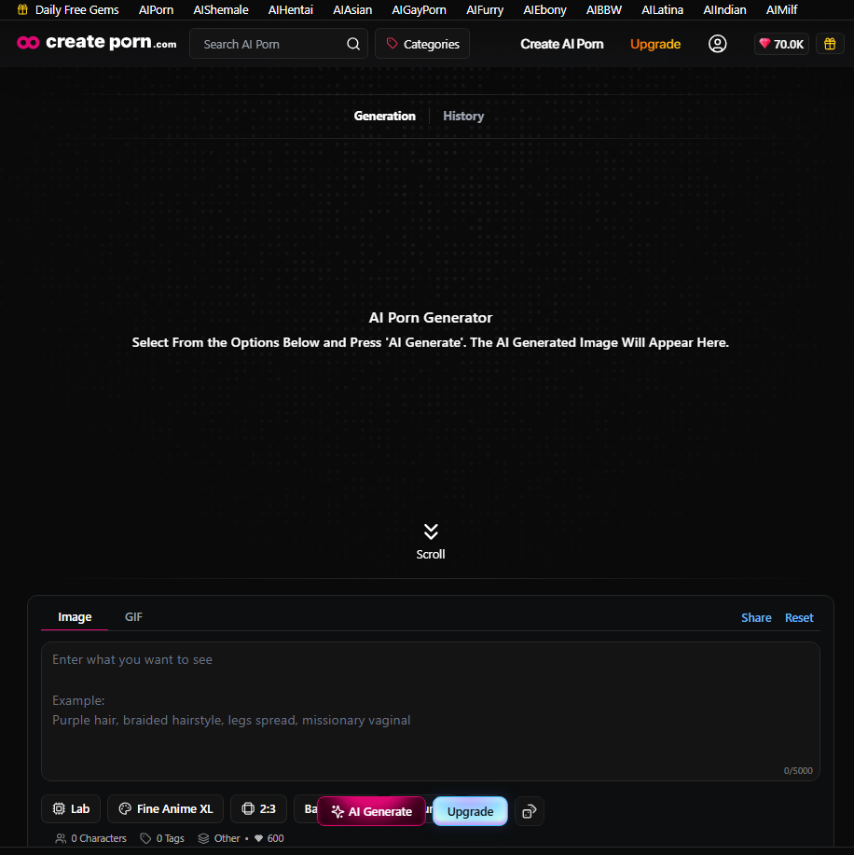
AI character design is the process of planning the visual traits and creative direction used to generate a recognizable character.
A complete design may include:
- Physical appearance
- Distinctive identity features
- Personality cues
- Facial expressions and posture
- Clothing direction
- Visual style
- Color palette
- Backgrounds and environments
- Continuity rules for future images
Not every detail should be treated as part of the saved identity. A character can wear different clothing, move through different locations, or express different emotions while remaining recognizable.
The most useful design system distinguishes between the features that should remain stable and the details that can change from scene to scene.
- Character identity: The fixed features that make the character recognizable, such as face, hair, body type, and other defining traits. Set these in the Character Description or by using a Reference Image.
- Personality and expression: The character’s mood, facial expression, posture, and gestures in a specific image. Describe these in the Generation Prompt.
- Visual style: The overall look of the image, such as realistic, anime, fantasy, cinematic, or illustrated. Choose the closest Style, then use the Generation Prompt for any additional visual direction.
- Scene details: Everything that can change from one generation to another, including pose, clothing, action, camera angle, lighting, and location. Define these in the Generation Prompt and use Tags where available.
- Continuity: The details you want to keep consistent across multiple images, such as the character’s core appearance and recurring features. Keep these details consistent in the Character Description or Reference Image, and avoid changing them unnecessarily between prompts.
Character Identity and Scene Direction Are Different
Character identity describes the visible features that make the person recognizable. Scene direction describes how that person should appear in one particular generation.
Identity details may include:
- Hair color and hairstyle
- Eye color
- Face shape
- Body type
- Freckles, scars, beauty marks, or other recognizable features
- Other visible physical characteristics
Scene details may include:
- Facial expression
- Pose or action
- Clothing
- Location
- Camera angle and framing
- Lighting
- Mood
- Background objects
Createporn advises users to keep the Character Description focused on visible physical appearance. Actions, poses, locations, and scene details should be added to the Generation Prompt instead.
This separation keeps the Character flexible. A saved identity can then be directed through a quiet indoor portrait, a rooftop scene, a fantasy environment, or another compatible setting without rebuilding the Character for every image.
How to Define a Recognizable Character Appearance
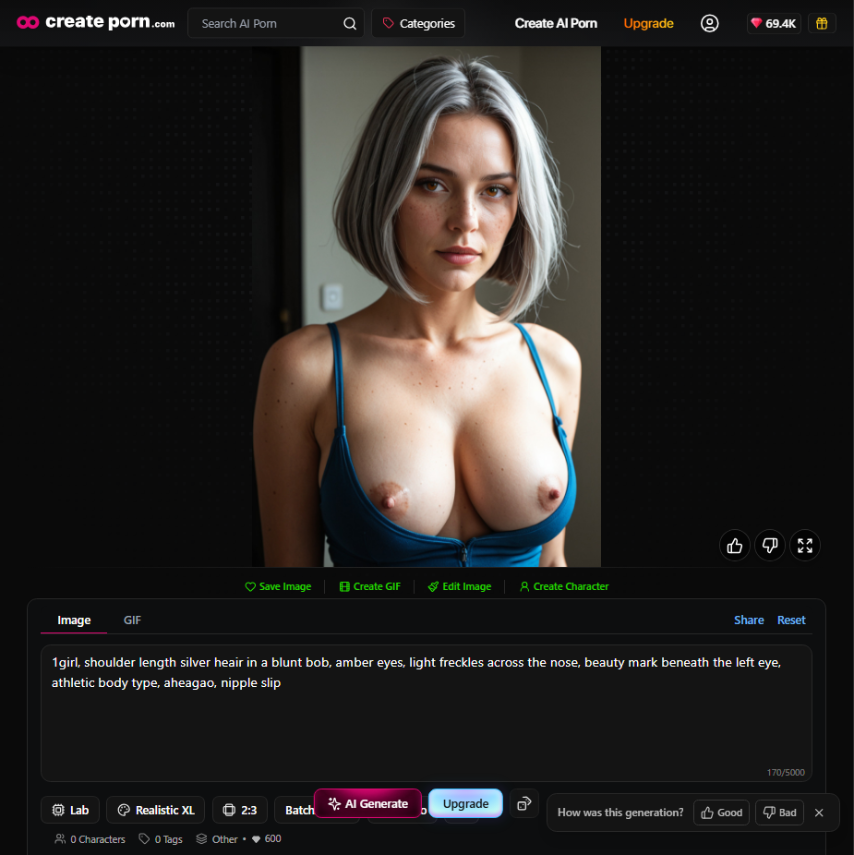
A recognizable character does not need an extremely long description. A small number of clear identity anchors can be more useful than a crowded list of minor details.
Identity anchors are visual traits that can be noticed repeatedly across different images. Examples include:
- Shoulder-length silver hair in a blunt bob
- Amber eyes
- Light freckles across the nose
- A beauty mark beneath the left eye
- An athletic body type
- A distinctive facial structure
Choose two or three strong features and support them with a few additional physical details. Avoid adding instructions that belong to only one scene.
Character Description Formula
For a description-based Character, use:
Core subject + hair + eyes + body type + recognizable physical features
Character Description Example
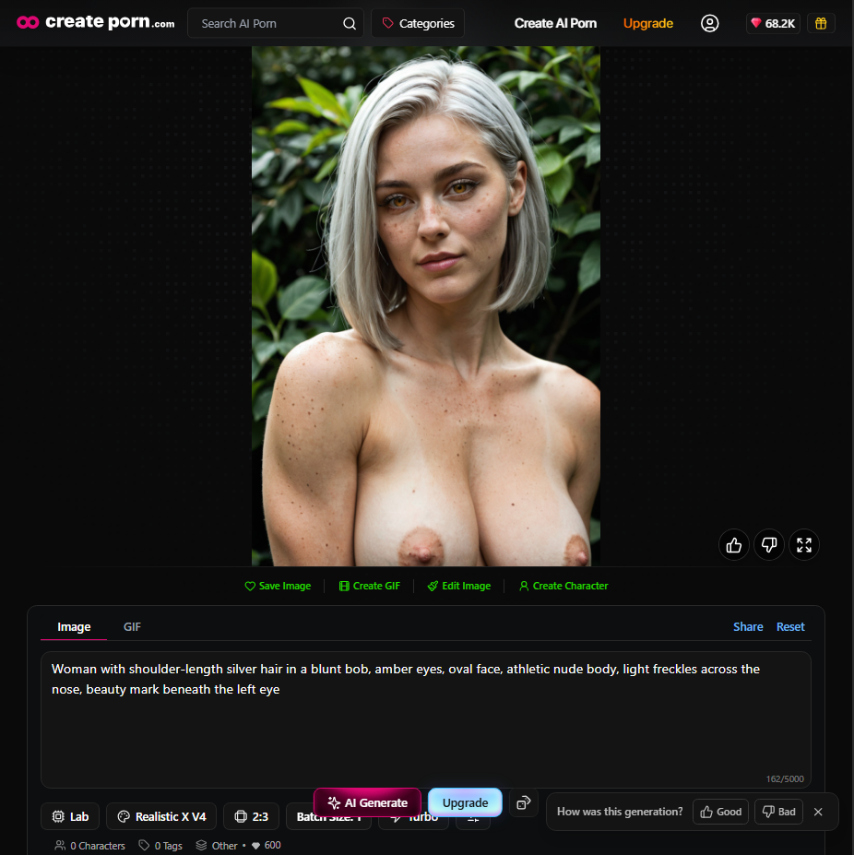
Prompt:
Woman with shoulder-length silver hair in a blunt bob, amber eyes, oval face, athletic body, light freckles across the nose, small beauty mark beneath the left eye
Why it works: The description identifies visible physical traits without adding a pose, action, outfit, location, camera angle, or background.
Createporn's current Consistent Characters guide states that outfit and costume recognition are not supported in the Character Description. Add clothing to the Generation Prompt when creating each scene.
How Personality Shapes AI Character Design
Personality gives a character emotional direction, but internal traits are not always visually clear. Words such as confident, reserved, playful, or mysterious may be interpreted inconsistently when they appear alone.
Translate personality into details the viewer can see:
- Confident: Use an upright posture, direct eye contact, relaxed shoulders, and a controlled smile to suggest confidence.
- Reserved: Use subtle expressions, restrained gestures, a quieter setting, and more closed body language to create a reserved impression.
- Playful: Use a bright smile, energetic pose, colorful styling, and a lively environment to communicate a playful mood.
- Elegant: Use composed posture, refined clothing, balanced framing, and soft, controlled lighting to create an elegant appearance.
- Rebellious: Use a defiant gaze, asymmetrical styling, unconventional poses, and stronger contrast to suggest a rebellious attitude.
- Dreamy: Use a distant or relaxed gaze, gentle posture, diffused lighting, and muted colors to create a soft, dreamy mood.
Personality Prompt Example
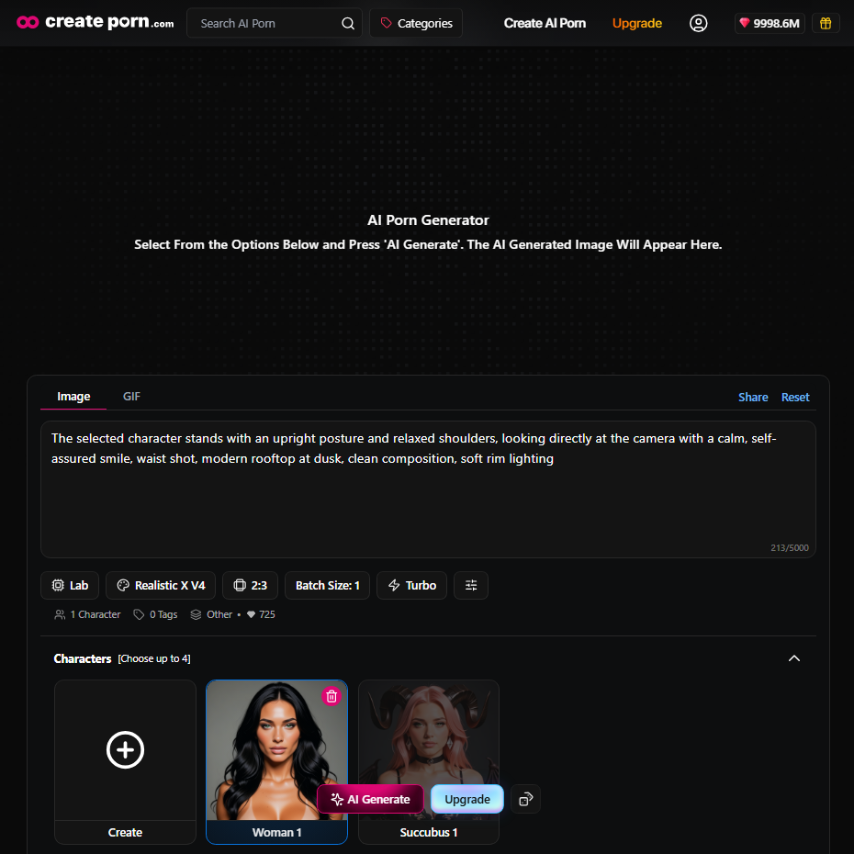
Prompt:
The selected character stands with an upright posture and relaxed shoulders, looking directly at the camera with a calm, self-assured smile, waist shot, modern rooftop at dusk, clean composition, soft rim lighting
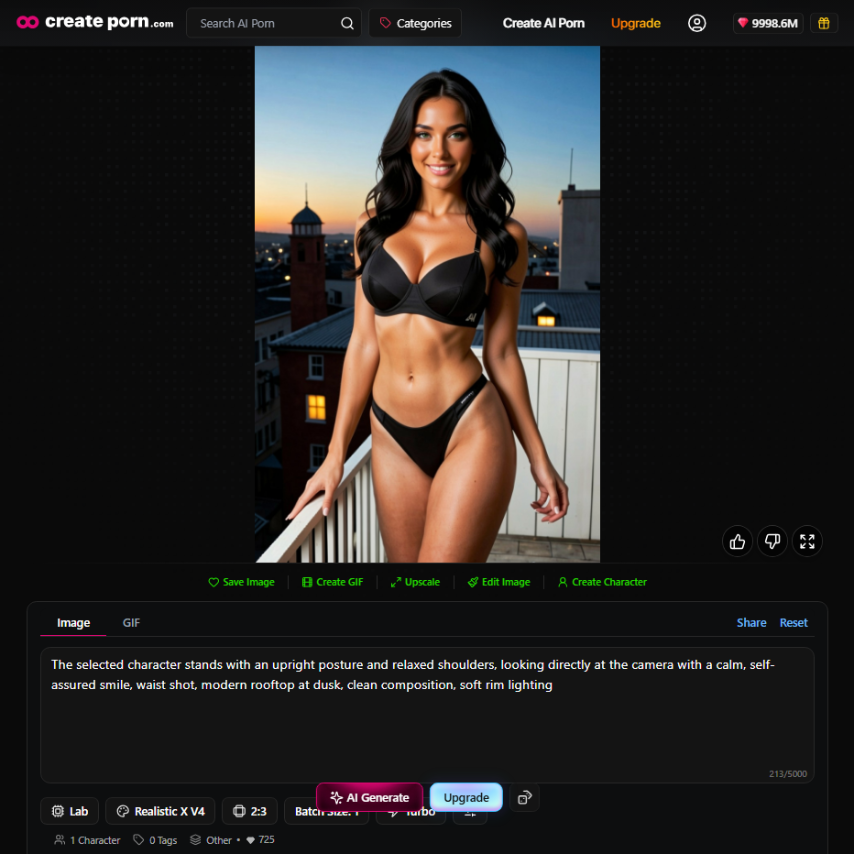
Why it works:
The prompt expresses confidence through posture, eye contact, expression, framing, and lighting instead of relying on one abstract personality word.
Personality can also be reinforced through recurring creative choices. Similar expressions, gestures, color palettes, or environments can make separate images feel like they belong to the same character story.
The Consistent Characters feature is documented as a tool for recognizable appearance. It should not be described as storing a character's personality, biography, relationships, or narrative memory.
How Visual Style Affects an AI Character
Visual style controls how the character's features are interpreted. The same identity may appear different in realistic photography, anime illustration, fantasy art, or a stylized animated image.
Common style directions include:
- Realistic portrait photography
- Cinematic realism
- Polished anime illustration
- Dark fantasy art
- Bright stylized animation
- Retro editorial photography
- Soft painterly illustration
Choose one coherent direction for each image. Combining incompatible instructions such as photorealistic portrait and flat cel-shaded cartoon can create competing visual guidance.
Createporn recommends using the same Style that was selected when the Character was created. A Character can be used with other Styles, but the official guide notes that appearance, quality, and style consistency may vary.
Visual Style Prompt Example
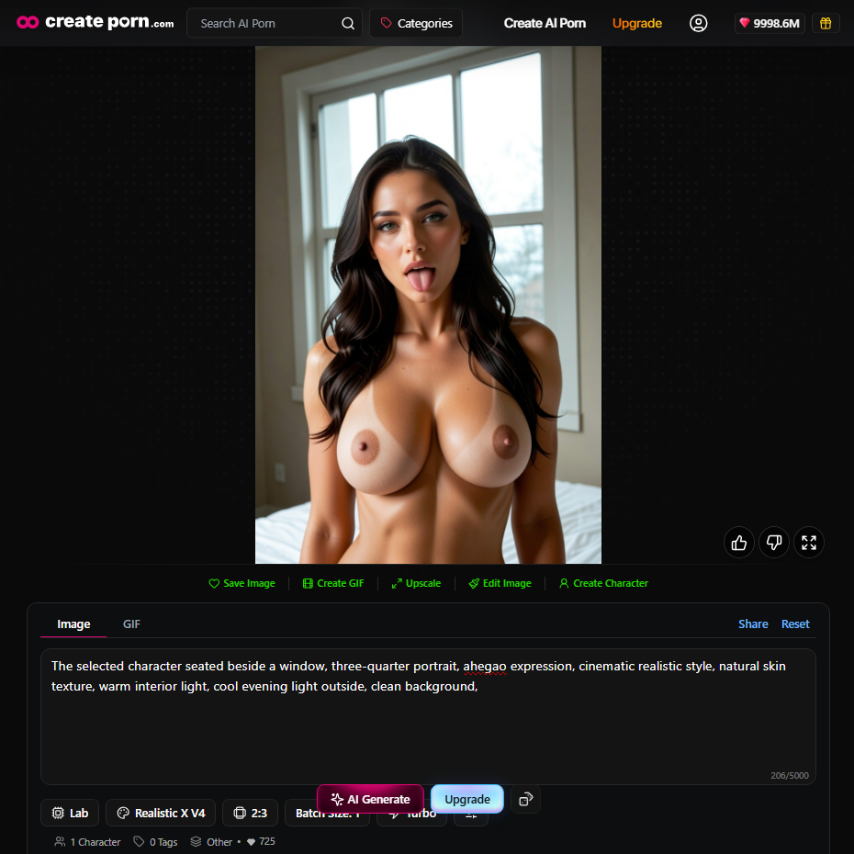
Prompt:
The selected character seated beside a window, three-quarter portrait, composed expression, cinematic realistic style, natural skin texture, warm interior light, cool evening light outside, clean background
Why it works:
The prompt uses one visual treatment and a compatible lighting direction without redefining the saved physical identity.
When a series requires strong continuity, keep the same Character and Style selected while changing only the scene details needed for each image.
How Backgrounds Support Character Design
A background should provide context without competing with the character. It can communicate setting, mood, time of day, and narrative purpose while keeping the subject visually clear.
A background prompt may include:
- Location
- Time of day
- Weather or atmosphere
- Important objects
- Lighting
- Color direction
- Complexity constraints
For example:
Modern rooftop at dusk, distant city lights, cool blue atmosphere, warm rim light, uncluttered composition
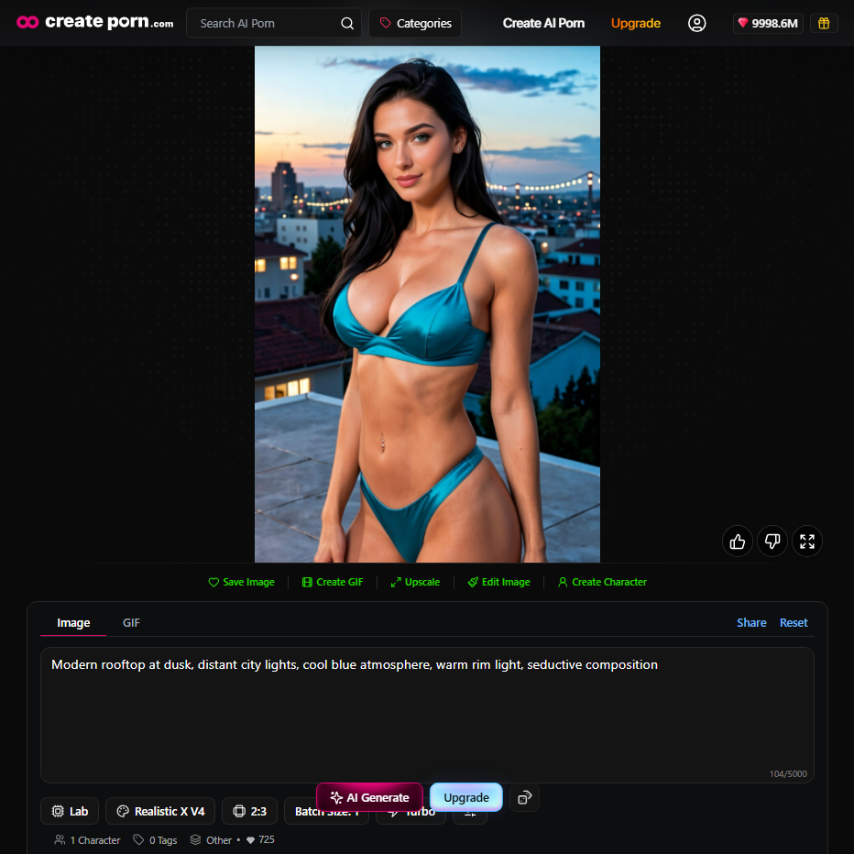
The description establishes a location and mood without filling the image with unnecessary objects.
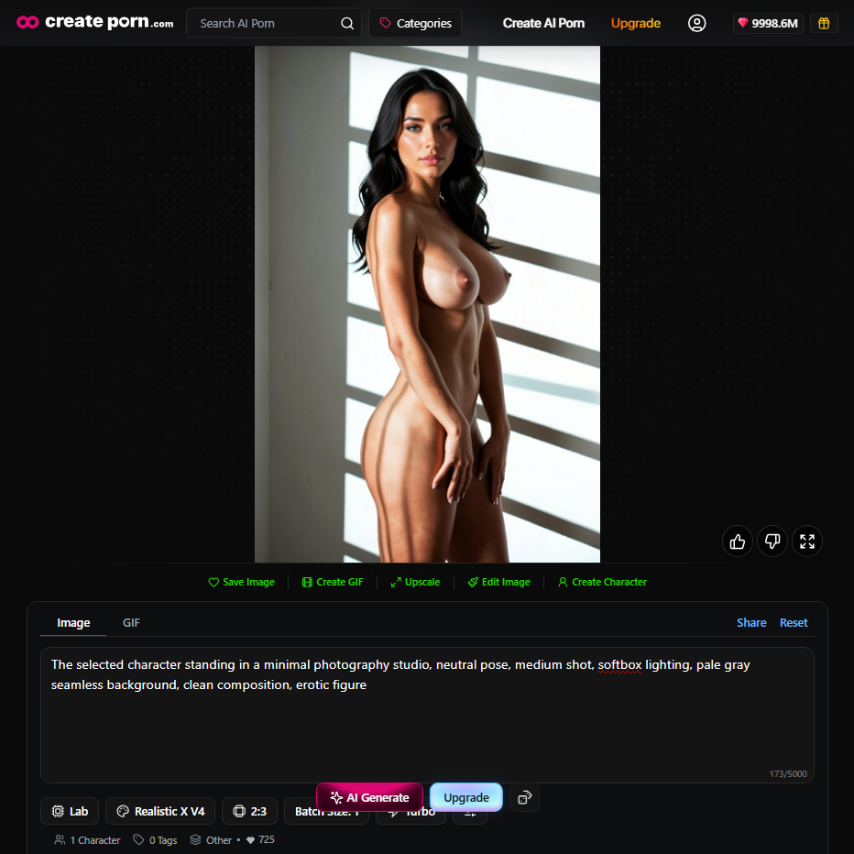
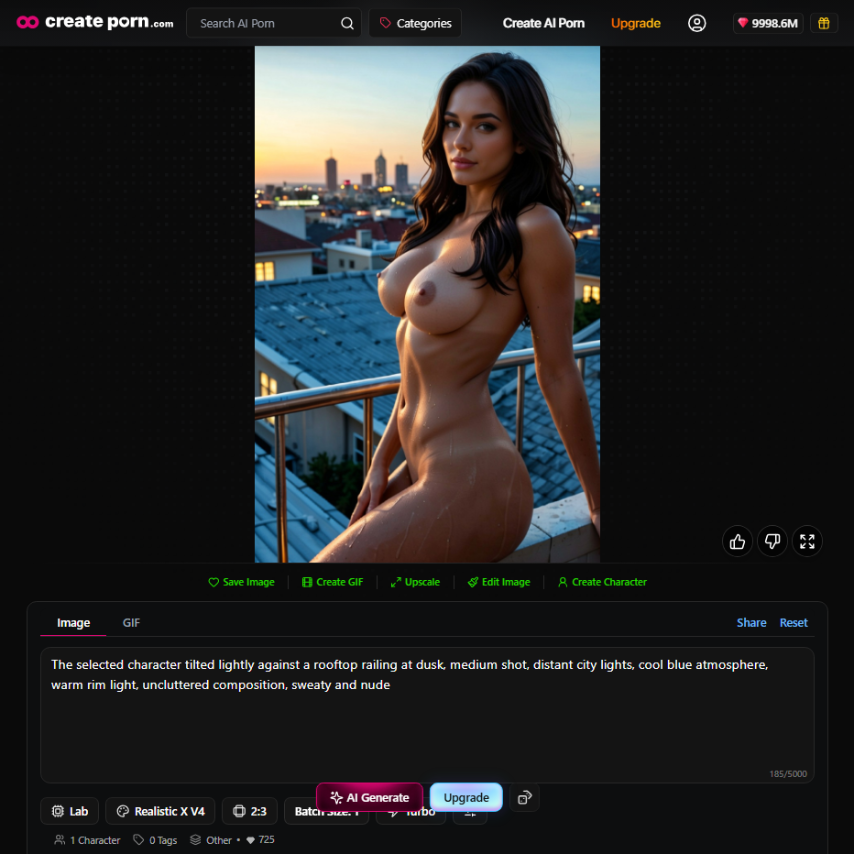
Same Character in Different Backgrounds
Studio prompt:
The selected character standing in a minimal photography studio, neutral pose, medium shot, softbox lighting, pale gray seamless background, clean composition
Rooftop prompt:
The selected character leaning lightly against a rooftop railing at dusk, medium shot, distant city lights, cool blue atmosphere, warm rim light, uncluttered composition
Interior prompt:
The selected character seated beside a large window in a modern apartment, relaxed posture, waist shot, soft morning light, neutral interior colors, simple background
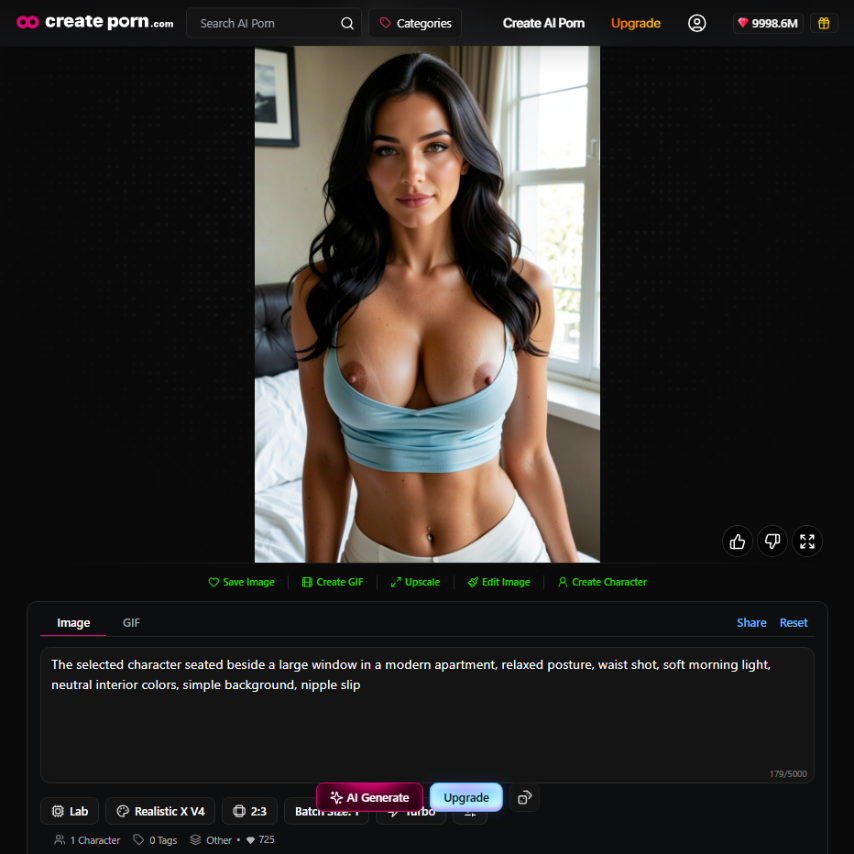
These prompts change the environment and lighting while keeping the saved Character as the identity anchor. When testing consistency, change one major scene variable at a time. If the appearance begins to drift, return to the original Style and simplify the scene prompt.
How the Createporn Consistent Characters Workflow Works
Createporn documents two ways to create a consistent Character.
1. Open the Consistent Characters Section
Go to the Create page and select a Style. Expand the Consistent Characters section under the generation settings, then select Create.
2. Choose a Creation Method
Select one of the available options:
- Create from a Description
- Use a Reference Image
Use a description when the Character begins as a written concept. Use a Reference Image when one of your existing Creations already shows the identity you want to preserve.
3. Create From a Description
Enter a Character name and describe visible physical features in the Character Description field. Relevant Tags can also be selected when useful.
Keep actions, poses, locations, and scene details out of this field. Add them later through the Generation Prompt.
4. Create From a Reference Image
Choose Reference and select one of your existing Creations. Use a clear image where the Character's main facial and physical features are easy to understand.
Heavy visual obstruction, unclear lighting, distortion, or a distant subject may make the reference less useful.
5. Review the Character Options
The documented workflow produces three versions. Compare the options and select the version that most closely matches the intended identity.
6. Save the Character
Select the preferred version and choose Save Model. The Character will then appear in the Consistent Characters section on the Create page.
For the complete feature workflow, see Creating and Using Consistent Characters.
How to Generate Images With a Saved Character
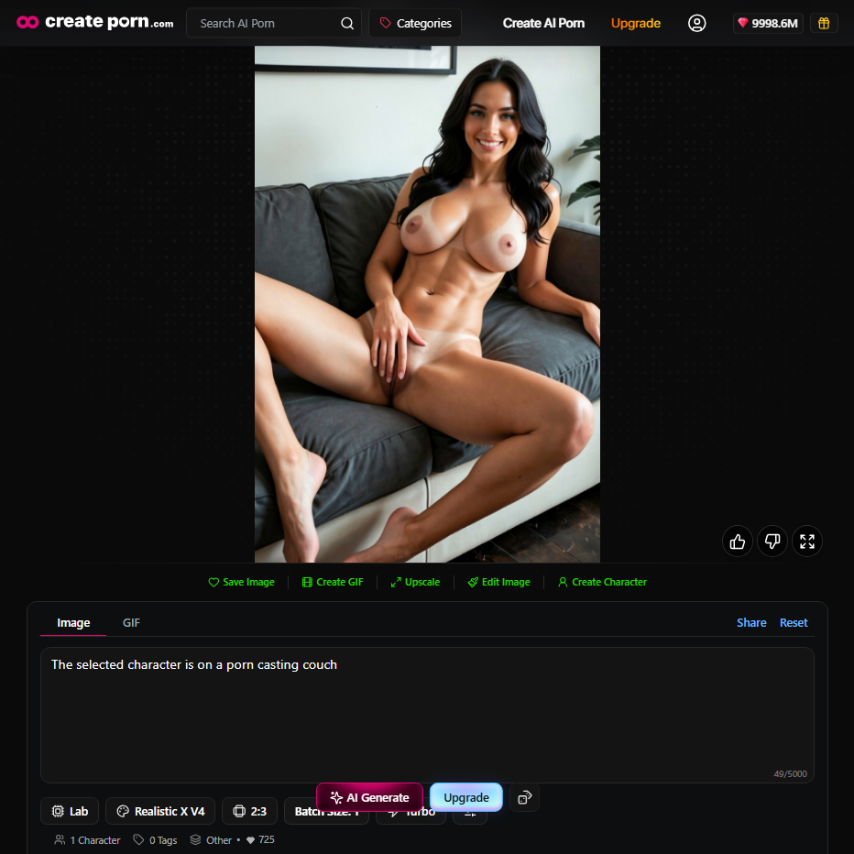
Once the Character is saved, it can be selected during later image generations.
1. Choose the Style
Open the Create page and select the Style originally used to create the Character when continuity is the priority.
2. Select the Character
Expand the Consistent Characters section and select the saved Character. Confirm that it appears highlighted or active before continuing.
3. Add the Scene Prompt
Use a Prompt or Tags to describe the new image. This may include:
- Expression
- Pose or action
- Clothing
- Location
- Camera framing
- Lighting
- Visual style
- Background details
You do not need to repeat all saved physical features in the Generation Prompt. The prompt should focus on what changes in the new image.
4. Generate and Review
Generate the image and compare it with the saved Character. Check the face, hair, eyes, body type, and distinctive features before continuing the series.
For a dedicated character-creation workflow, use the AI Character Generator. For more prompt structures, see the AI Character Prompt Guide.
How to Structure an AI Character Prompt
After selecting the saved Character, a clear Generation Prompt can follow this structure:
Selected character + expression or personality cue + pose or action + clothing + camera framing + location + lighting + visual style + constraints
You do not need to use every category in every image. Include only the details that matter to the intended result.
Complete AI Character Prompt Example
Prompt:
The selected character looks toward the camera with a calm, confident expression, standing with one hand resting on a railing, fitted black evening dress, medium-full shot at eye level, modern hotel balcony at night, soft blue city light and warm window glow, cinematic realistic style, clean composition, consistent facial appearance
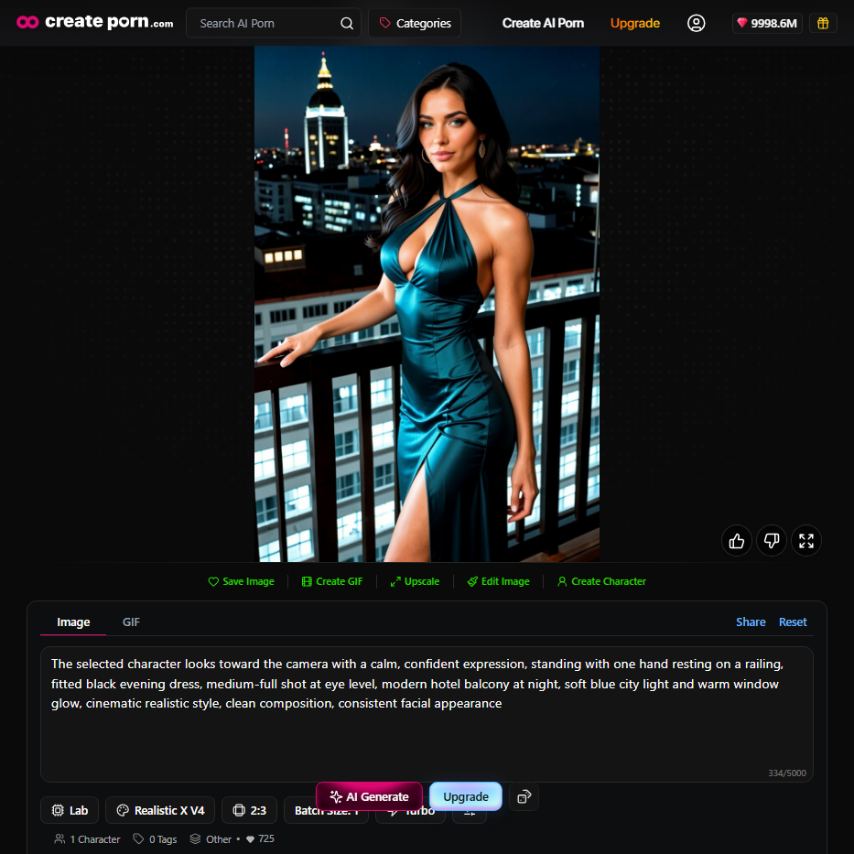
Why it works: The prompt directs personality cues, pose, clothing, framing, background, lighting, and style without rewriting the saved Character Description.
How to Keep an AI Character Consistent
Consistency improves when the generation process changes one controlled detail at a time.
Use these guidelines:
- Keep the same saved Character selected across related scenes.
- Using the original Style when maintaining appearance is the priority.
- Keep the Character Description focused on visible physical identity.
- Add clothing, pose, action, and location through the Generation Prompt.
- Use clear Reference Images with visible facial and physical details.
- Keep prompts focused and remove conflicting directions.
- Compare each result with the approved Character version.
- Record successful prompts and Style selections for later scenes.
Consistent Characters can improve continuity, but Createporn notes that results may still vary between generations. The feature should not be presented as a guarantee of identical output.
Why AI Character Results Can Vary
Generated character images are interpretations of the saved Character, selected Style, Prompt, Tags, and generation settings. Even when the same Character is active, details may shift.
Variation may be influenced by:
- The clarity of the Character Description
- The quality of the Reference Image
- The selected Style
- Cross-Style generation
- Pose complexity
- Camera angle and framing
- Clothing instructions
- Lighting
- Background complexity
- Conflicting prompt details
If the character changes unexpectedly, simplify the scene and return to the Style used during Character creation. Confirm that the Character is active before generating another test.
How to Improve AI Character Results
- Character Description includes a pose or location: Keep only visible physical features and move scene direction to the Generation Prompt.
- Clothing is treated as part of the saved identity: Add the outfit to each Generation Prompt.
- Character changes between images: Confirm the Character is active and return to the original Style.
- Personality feels vague: Replace abstract traits with visible expression, posture, gesture, lighting, and setting.
- Background overwhelms the character: Reduce objects and request a cleaner composition.
- Prompt repeats the full saved appearance: Remove redundant identity details and focus on the new scene.
- Cross-Style results drift: Use the original Style or treat the new Style as a deliberate reinterpretation.
- Reference-based Character looks inconsistent: Choose a clearer existing Creation with visible facial and physical features.
- Several details are ignored: Remove secondary instructions and test one change at a time.
- Saved Character does not appear: Check that the Character is highlighted or active before generating.
Frequently Asked Questions
What is AI character design?
AI character design is the process of defining recognizable appearance, personality cues, visual style, and continuity rules used to direct generated character images.
What should I include in a Character Description?
Focus on visible physical features such as hair color, hairstyle, eye color, body type, and other recognizable characteristics.
Should personality go in the Character Description?
Personality should be translated into visible expression, posture, gesture, clothing, lighting, and setting in the Generation Prompt. The feature is not documented as saving personality or narrative memory.
Should poses and backgrounds go in the Character Description?
No. Createporn advises users to add actions, poses, locations, and scene details to the Generation Prompt instead.
Can the saved Character recognize an outfit?
Createporn's current guide states that outfit and costume recognition are not supported in the Character Description. Add clothing to the Generation Prompt for each image.
Can I create a Character from an image?
Yes. Choose one of your existing Creations as a Reference Image when creating the Character.
How many Character options are generated?
The documented workflow presents three versions. Select the preferred option and choose Save Model.
Can I use a Character with another Style?
Yes, but appearance, quality, and style consistency may vary. Use the original Style when continuity is more important than changing the visual direction.
Why is my Character not appearing in this generation?
Confirm that the saved Character is selected and appears active. If the Character is missing from the section, return to the Style in which it was created.
Do consistent Characters guarantee identical images?
No. The feature can improve continuity, but results may still vary between generations.
Start Designing AI Characters
AI character design works by separating a recognizable identity from the details that change in each scene. Define a clear physical appearance, save the Character, and then use Generation Prompts to direct personality cues, pose, clothing, camera, lighting, visual style, and background.
Begin with a focused Character Description or a clear Reference Image. Use the same Style for the first set of scenes, test one controlled change at a time, and compare each result with the approved Character version.
Use the AI Character Generator to begin creating a reusable identity, then refine future scenes with the AI Character Prompt Guide and the Consistent Characters feature.