How AI Video Generation Works: A Complete Guide
Learn how AI video generation turns images into moving scenes through frames, motion prompts, camera direction, audio, and specialized AI Engines.
On this page
How AI Video Generation Works
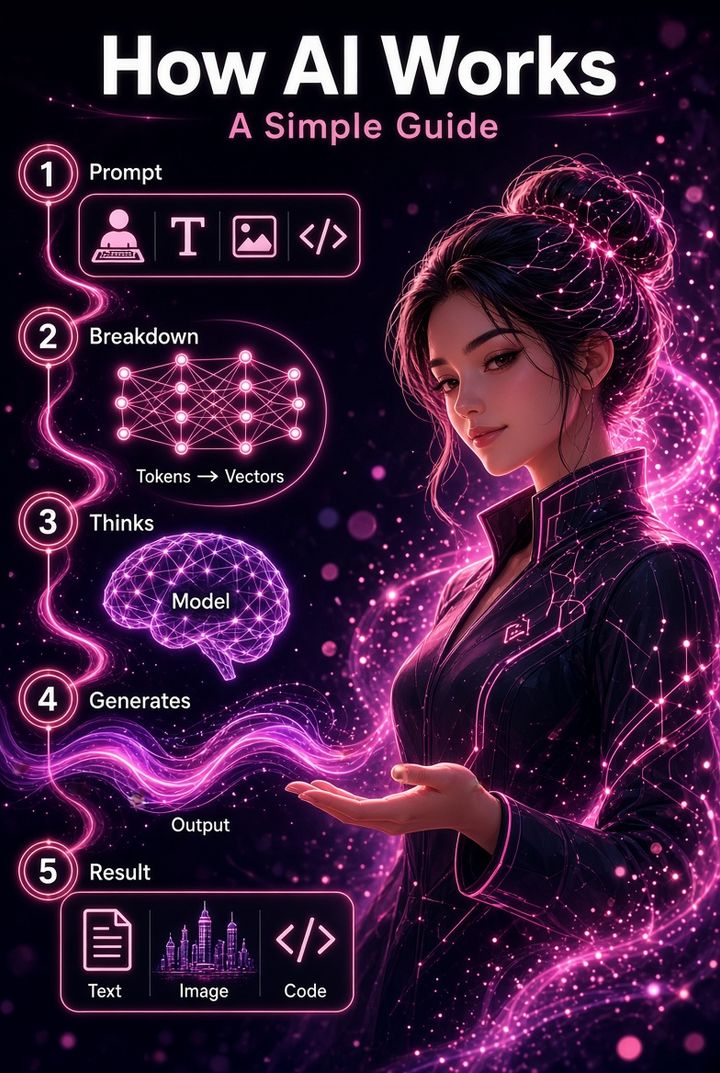
AI video generation turns a visual starting point into a moving sequence. Instead of animating every frame manually, a creator selects an image, describes the intended movement, and uses an AI Engine to generate the frames that develop the scene over time.
The starting image provides the initial subject, pose, composition, lighting, and environment. The video prompt adds direction: what should move, how the movement should unfold, how the camera should behave, and—when supported—what the viewer should hear.
The result depends on the relationship between three elements:
- The visual information already present in the image
- The instructions supplied through the prompt and generation settings
- The capabilities of the selected video Engine
This guide explains how frames, motion, camera direction, sound, and AI Engines work together in Createporn's documented image-to-video workflow.
What Is AI Video Generation?
AI video generation is the process of using a generative model to create a sequence of visual frames that produces the appearance of movement. In an image-to-video workflow, the process begins with a still image rather than a blank canvas.
The image acts as a visual anchor. It establishes details such as:
- The subject or characters
- Their starting pose and expression
- The camera angle and framing
- The setting and visible objects
- Lighting, colors, and visual style
The creator then supplies a video prompt describing how that scene should change. The Engine interprets the prompt and generates a short progression of frames designed to appear temporally connected when played in sequence.
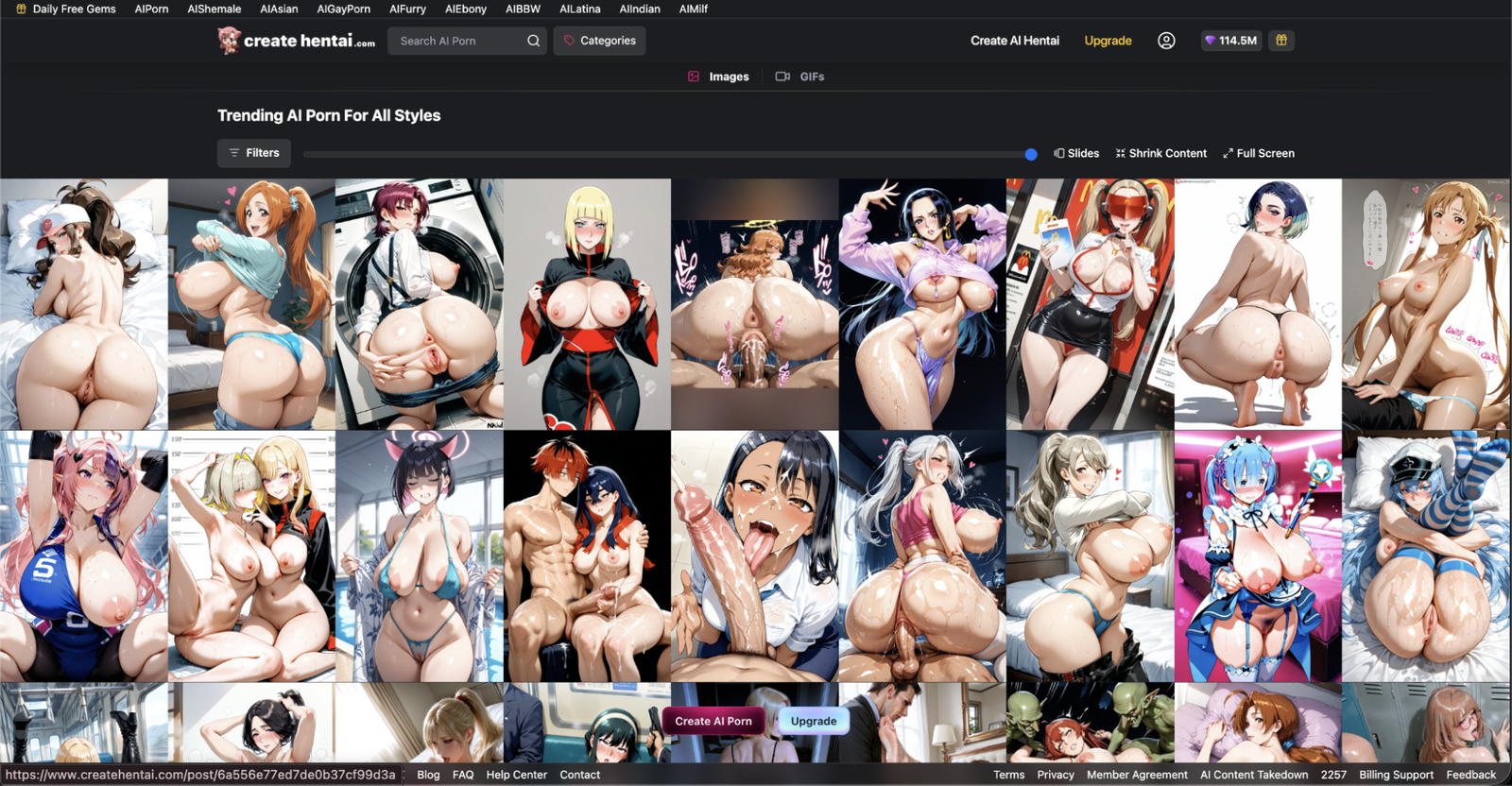
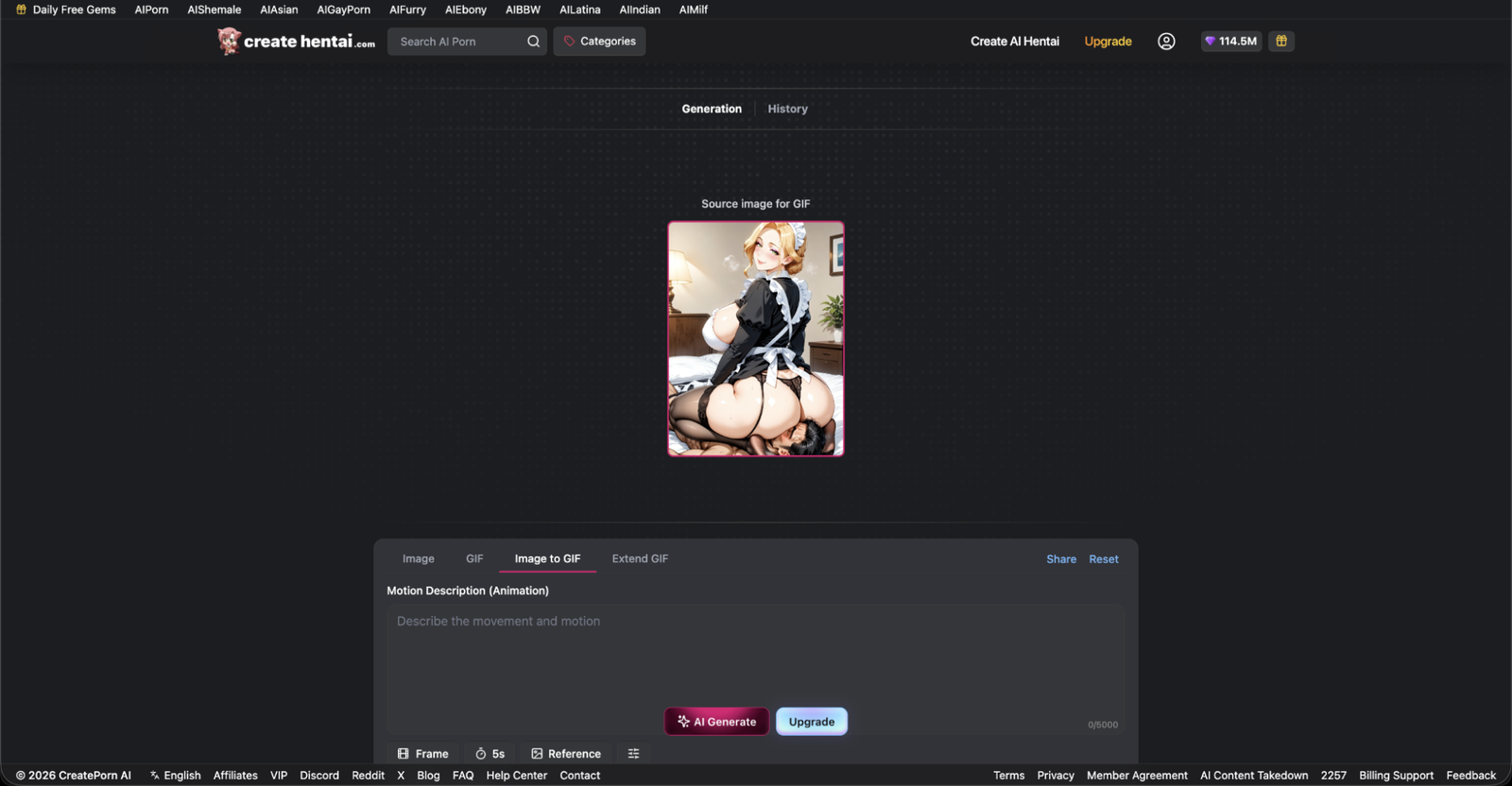
Createporn's current workflow is specifically documented as turning an existing creation into a video. Users can select an image from the Homepage or Creations page, or generate a new image on the Create page before opening the Image to Gif options.
How Frames Create the Appearance of Motion
A video is made from individual still images called frames. When frames are shown rapidly in sequence, small visual changes between them create the perception of continuous motion.
In conventional animation, an artist or production team may design key poses and construct the images between them. In AI video generation, the Engine generates the visual progression based on the starting image, prompt, and selected settings.
For example, if the starting image shows a person facing forward and the prompt asks them to turn their head slowly, later frames must show a believable progression from the original pose into the new direction. The face, hair, body, clothing, light, and background must remain sufficiently connected for the sequence to feel continuous.
This challenge is known as temporal consistency: maintaining recognizable visual relationships across time. If consistency breaks, the video may show identity drift, changing clothing, unstable anatomy, flickering details, or unexpected changes to the background.
The quality of the starting image matters because it supplies the structure from which the later frames develop. A sharp image with a visible subject and understandable pose gives the Engine clearer information than a blurry, distorted, poorly lit, or cluttered image.
A Frame Is Not the Same as the Frame Engine
The word frame has two meanings in this workflow:
- A video frame is one still image within a moving sequence.
- Frame is the name of a Createporn video Engine designed for simple, silent movement.
Keeping these meanings separate makes it easier to understand both the technology and the available creation tools.
How AI Generates Motion From a Still Image
The Engine does not simply move the original image across the screen. It generates changing visual information that represents the requested movement over time.
A motion prompt can direct several kinds of change:
- Subject movement: turning, walking, smiling, blinking, breathing, or raising a hand
- Object movement: curtains moving, rain falling, water flowing, or lights changing
- Camera movement: pushing in, pulling back, panning, zooming, or tracking
- Scene development: changing the framing or progressing through connected shots
- Audio behavior: ambience, dialogue, voice, music, or sound effects on supported Engines
Small motion is generally easier to keep stable because it requires less new visual information. If a visible hand rises slightly, the Engine can build on details already present. If a seated subject is asked to stand, spin, and walk away, the Engine may need to construct body positions and background details that were hidden in the starting image.
More capable Engines may handle developed motion and scene changes better, but the requested actions should still connect naturally. A focused progression is easier to interpret than several unrelated movements competing in one short prompt.
Subject Motion and Camera Motion Are Different
An effective AI video prompt distinguishes between movement inside the scene and movement of the camera.
Subject motion describes what a person, object, or environmental element does. Examples include:
- The subject slowly turns toward the camera
- Her hair moves gently in the breeze
- He takes two steady steps forward
- The curtains sway beside the window
Camera motion describes how the viewer's perspective changes. Examples include:
- Static camera
- Slow push-in
- Camera pans left
- Tracking shot from the front
- Camera slowly pulls back to a wide shot
Combining one primary subject action with one compatible camera instruction gives the Engine a clear visual objective. Multiple simultaneous camera directions—such as zooming, panning, rotating, and tracking in the same shot—can create conflicting instructions.
For Frame, Motion, and Motion 2.0, Createporn recommends keeping the camera mostly still or using a simple push-in or zoom. Sync supports simple camera switches, while Sync 2.0 and Sync 2.0 Pro are intended for stronger scene movement and more advanced direction.
What an AI Video Engine Does
The Engine determines how the starting image and prompt are processed into a video result. Different Engines prioritize different capabilities, so selecting one is part of the creative decision rather than a purely technical setting.
According to Createporn's current Video Prompting Guide, the available Engines serve these general purposes:
- Frame: Designed for simple movement that stays close to the starting image. It does not generate audio and provides minimal scene control.
- Motion: Supports general movement with sound while remaining relatively close to the starting image. It provides low-to-moderate scene control.
- Motion 2.0: Designed for more accurate body movement, rhythm, repeated movement, or NSFW motion. It supports audio, although its audio capabilities are weaker than those of the Sync Engines. Scene control is moderate.
- Sync: Supports voice, music, ambience, dialogue, and simple camera switches. It generates audio and provides moderate scene control.
- Sync 2.0: Provides stronger general quality, prompt accuracy, and scene control. It supports audio and offers moderate-to-high scene control.
- Sync 2.0 Pro: Supports advanced scene development, cinematic direction, audio, and multi-shot structure. It provides high scene control.
Sync 2.0 Pro supports NSFW motion, but the official guide identifies Motion 2.0 as the stronger choice when that type of movement is the priority.
Engine availability, capabilities, and Gem costs may change. Review the live generation interface and current support documentation before publishing fixed pricing or making a large number of generations.
How Audio Fits Into AI Video Generation
Sound-enabled Engines can interpret audio direction alongside visual movement. Depending on the Engine, a prompt may request:
- Ambient room sound
- Rain, wind, waves, or city noise
- Natural breathing or movement sounds
- Dialogue or a short spoken line
- Voice tone, emotion, pace, and language
- Background music or sound effects
- Silence or the absence of selected audio types
Audio must be supported by the selected Engine, and Createporn instructs users to enable the Audio control when sound is wanted. The frame is silent, so audio instructions should not be included when using that Engine.
Specific instructions are more useful than simply asking for “sound.” A creator can describe quiet room ambience, request a short sentence in a calm voice, or state no dialogue and no background music when only environmental audio is wanted.
How the Createporn AI Video Workflow Works
The documented image-to-video process can be understood as eight stages.
1. Create or Choose a Starting Image
Open an image from the Homepage or the Creations page. You can also generate a new base image on the Create page.
Choose an image where the subject, pose, lighting, and scene are easy to understand. Existing blur, distorted anatomy, hidden limbs, or visual clutter may become more noticeable when the scene begins to move.
2. Open Image to Gif
Select the image and open the Image to Gif options. This area provides access to the Engine, video-prompt field, and available generation settings.
3. Choose an Engine
Match the Engine to the result you need. A subtle silent portrait animation does not require the same capabilities as dialogue, complex body movement, or a multi-shot scene.
Before spending Gems, Createporn recommends checking its Search function or Discord Server to see what users are currently producing with each Engine.
4. Review the Aspect Ratio
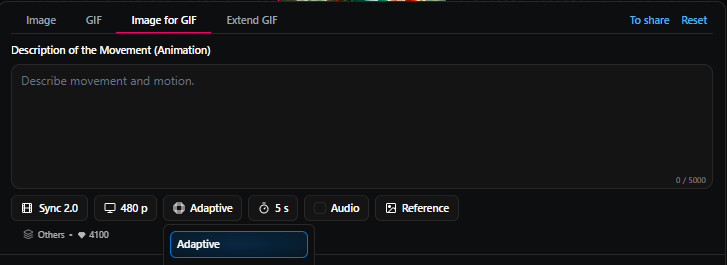
When using Sync 2.0 or Sync 2.0 Pro, Adaptive can automatically select a suitable supported aspect ratio. The current guide lists 16:9, 9:16, 4:3, 3:4, 1:1, and 21:9 as supported ratios.
Choose a composition appropriate for the intended destination. A vertical result may suit mobile viewing, while a wide ratio may better support cinematic framing.
5. Write the Motion Prompt
Describe what should move, how it should move, and how the camera should behave. Add environment, aesthetic, sound, and constraints only when they support the same central idea.
For a simple silent animation:
Motion + camera control
For a sound-enabled Engine:
Subject + movement + environment + camera movement + aesthetic description + sound + constraints
For detailed prompt-writing instructions and examples, see theVideo Prompting Guide.
6. Enable Audio When Needed
Turn on Audio when the selected Engine supports sound and the video should include it. Leave sound directions out of prompts for Frame.
7. Generate One Test
Start with a single test generation. This limits unnecessary Gem spending and gives you a result to diagnose before adding more complexity.
8. Review and Refine
Compare the result with the intended motion. Check:
- Did the correct subject move?
- Did the motion develop naturally from the starting pose?
- Did the camera follow the requested direction?
- Did the subject, clothing, and scene remain consistent?
- Did the Engine add the requested sound?
- Did unwanted people, text, voice, music, or scene changes appear?
Change the instruction related to the observed problem rather than repeating the same unsuccessful prompt.
Why AI Video Results Can Vary
An AI video Engine interprets the starting image and prompt rather than following a manually constructed animation timeline. Results can therefore vary between generations.
Important variables include:
- Starting-image quality
- Visibility of the subject and body parts
- Compatibility between the starting pose and requested movement
- Number and complexity of actions
- Camera direction
- Environment and background complexity
- Selected Engine
- Audio instructions
- Generation settings
The prompt may be clear but still mismatched with the chosen Engine. Frame is designed for basic silent animation, while Sync 2.0 and Sync 2.0 Pro can support more developed scenes. Motion 2.0 may be a better fit when accurate rhythmic or NSFW body movement is more important than advanced audio.
How to Improve an Unstable AI Video
When a result looks wrong, identify the failure before changing the prompt.
Camera moves unexpectedly: Add static camera, fixed camera, or locked-off shot.
- Motion becomes distorted: Reduce the movement speed, range, or number of actions.
- Anatomy becomes unstable: Use a clearer image and request a smaller movement.
- The wrong subject moves: Identify the subject by position, clothing, or pose.
- Extra characters appear: Add no extra characters.
- The scene changes: Add keep the same composition and no scene change.
- Part of the prompt is ignored: Remove secondary actions and simplify the request.
- Unwanted speech appears: Add no dialogue or no voice.
- Unwanted music appears: Add no background music.
- Multi-shot direction fails: Reduce the number of shots or use a stronger Sync Engine.
- The result stays too close to the image: Try Sync 2.0 or Sync 2.0 Pro for stronger scene development.
- Audio quality is poor: Simplify the sound direction or use a Sync Engine.
If a three-shot prompt is unstable, reduce it to two connected shots. Shot order is generally more reliable than forcing exact second-by-second timing.
Frequently Asked Questions
How does AI video generation work?
AI video generation creates a sequence of connected frames from a visual starting point and a prompt. The image establishes the initial subject and scene, while the prompt directs movement, camera behavior, atmosphere, and supported audio.
What is a frame in an AI video?
A frame is one still image within a video sequence. Small visual changes across consecutive frames create the appearance of motion. This general term is separate from Frame, the name of Createporn's simple silent video Engine.
Does AI animate the original image?
The starting image provides the visual structure, but the Engine generates new frames showing how the scene changes. It must maintain enough consistency across those frames for the movement to appear continuous.
Why is the starting image important?
A clear image gives the Engine understandable information about the subject, pose, lighting, composition, and environment. Blur, distortion, hidden anatomy, or clutter can make later frames less stable.
What controls movement in an AI video?
Movement is influenced by the starting pose, motion prompt, camera instructions, selected Engine, and generation settings. Focused actions that develop naturally from the image are generally easier to control.
Which Createporn Engine supports audio?
Motion, Motion 2.0, Sync, Sync 2.0, and Sync 2.0 Pro support audio. Frame does not. The Audio control must be enabled when sound is wanted.
Can AI video generation create multiple shots?
Createporn documents multi-shot prompting for Sync, Sync 2.0, and Sync 2.0 Pro. Sync is suited to simple camera switches, while Sync 2.0 and Sync 2.0 Pro provide stronger scene development.
Why does an AI-generated video look distorted?
Common causes include a weak starting image, a large pose change, too many actions, conflicting camera directions, a busy environment, or an Engine that does not match the requested result.
Should I repeat the same prompt when a generation fails?
No. Review what failed and change the relevant instruction first. Simplify the movement, reduce camera motion, add a focused constraint, choose a stronger starting image, or try a better-suited Engine.
Start Creating AI Videos
AI video generation works by turning a strong visual starting point into a sequence of connected frames. The image establishes the scene, the prompt describes how it should develop, and the Engine determines how much motion, camera control, audio, and scene progression can be produced.
Begin with a clear image and one natural movement. Choose an Engine suited to the goal, generate one test, and refine only the part that needs improvement. Once the basic motion is stable, you can introduce more developed camera direction, atmosphere, audio, or multi-shot structure.