Complete Guide to AI Video Generation
Learn how AI video generation works, how frames and motion are created, how to choose an Engine, write prompts, add sound, and improve video quality.
On this page
AI video generation turns a visual idea into moving content. Instead of drawing or editing every frame manually, a creator can begin with an image, describe the intended movement, choose a generation Engine, and let the system produce a short video.
The process is simple to start, but the quality of the result depends on several connected decisions. The starting image establishes the subject and composition. The prompt describes movement, camera behavior, atmosphere, and sound. The selected Engine determines which types of motion and scene development it can handle effectively.
This guide explains how AI video generation works at a practical level, what frames and temporal consistency mean, how to choose an Engine on Createporn, and how to build a reliable generation workflow. The general technical explanations are educational summaries; Createporn’s Zendesk guide documents the user workflow and Engine behavior, not the proprietary architecture behind each Engine.
What Is AI Video Generation?
AI video generation is the use of a generative model to create a sequence of moving frames from an input such as an image, text description, or both.
In an image-to-video workflow, a still image acts as the visual starting point. The system analyzes visible information such as:
- The subject and pose
- Facial direction and expression
- Clothing and body position
- Objects and background elements
- Camera framing and angle
- Lighting, color, and visual style
The prompt then describes how that starting scene should change over time. It might request a smile, a head turn, moving hair, a tracking camera, rain ambience, or a short spoken line.
The result is not simply the original image sliding across the screen. The Engine creates new visual information for successive moments while attempting to preserve the identity and structure established by the source image.
How Does AI Video Generation Work?
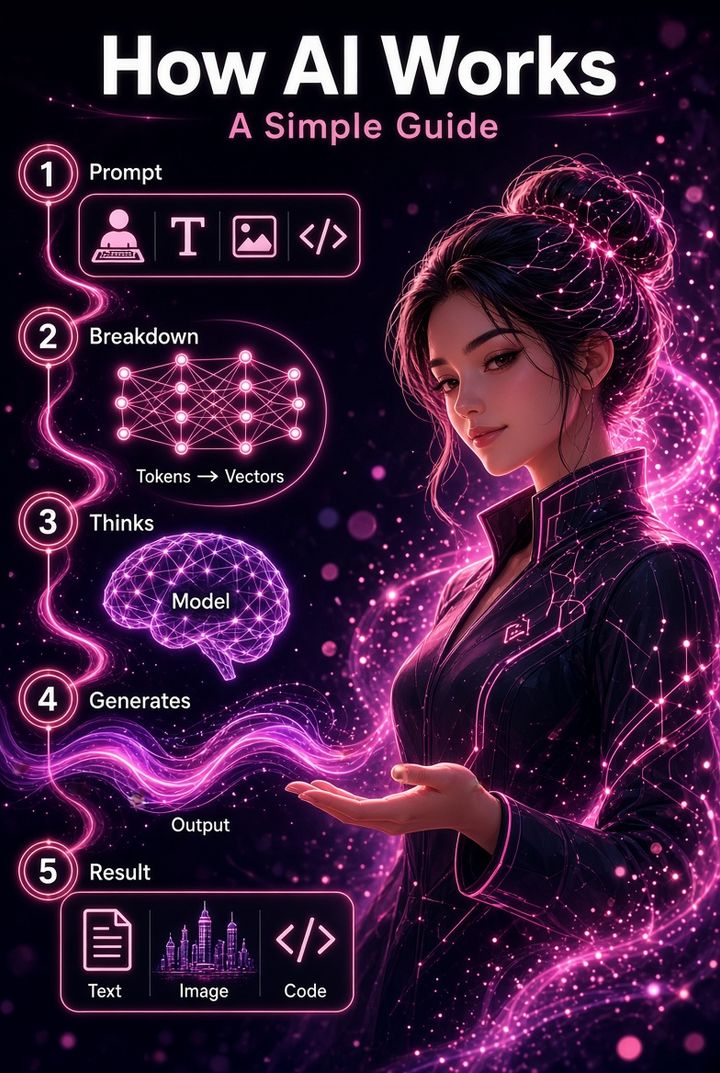
Different video models may use different technical systems. From a creator’s perspective, the process can be understood in five practical stages without assuming how a specific Createporn Engine is built internally.
1. The Starting Image Establishes the Scene
The image provides the initial subject, pose, environment, composition, lighting, and style. It gives the Engine a concrete visual structure from which to begin.
A clear image reduces how much the model must invent. A blurry face, cropped limb, distorted hand, ambiguous pose, or cluttered background creates uncertainty before animation begins. Because later frames develop from this source, existing problems may persist or become more noticeable in motion.
2. The Engine Interprets the Prompt
The prompt identifies what should move and how the scene should develop. A focused instruction can describe:
- Subject movement
- The speed, direction, and range of motion
- Environmental movement
- Camera behavior
- Mood, lighting, and style
- Dialogue, ambience, music, or silence when supported
- Constraints that should keep the result stable
The prompt does not replace the image. It works with the visible scene. Instructions that naturally extend the starting pose generally require less invention than instructions that demand a completely different pose, angle, or location.
3. The Engine Generates a Sequence of Frames
A video is a rapid sequence of still frames. Each frame represents a slightly later moment in the scene.
During generation, the Engine creates changes across those frames: a head turns a little farther, fabric shifts, the camera moves closer, or background light changes. Smooth motion depends on those changes progressing coherently rather than jumping unpredictably between frames.
Creators normally do not prompt every frame separately. They describe the action and let the Engine determine the intermediate visual steps.
4. The Engine Tries to Maintain Temporal Consistency
Temporal consistency is a general video-generation term for keeping important visual details coherent over time. In practice, creators look for stable identity, clothing, anatomy, lighting, background, and motion direction from one frame to the next. It is not a named control documented in Createporn’s Video Prompting Guide.
When consistency breaks, viewers may notice:
- Facial features changing between frames
- Hands, limbs, or clothing warping
- Background objects appearing or disappearing
- Lighting that flickers without a reason
- Camera movement that changes direction
- Additional people entering the scene unexpectedly
Clear source images, compatible movement, simple backgrounds, focused prompts, and an appropriate Engine can reduce these problems. They cannot guarantee a perfect result, because generated video may not follow every instruction exactly.
5. The Output May Include Video and Audio
A sound-enabled Engine may produce ambience, dialogue, voice, music, or effects as part of the result. The assigned Zendesk guide does not describe the internal order in which visual and audio content are generated. From the user’s perspective, audio should be requested clearly, and Createporn instructs users to enable the Audio control when sound is wanted.
Frame is documented as silent. The other Engines listed in the current Zendesk guide support sound, although their strengths differ.
Frames, Motion, and Camera Movement
Understanding three concepts makes image-to-video prompting easier.
Frames
Frames are the individual images that form a video. A stable result keeps important visual features consistent while introducing small, connected differences from one frame to the next.
The creator does not need to specify a frame rate to write an effective Createporn prompt. It is more useful to describe the visible action, pace, direction, and rhythm.
Subject and Environmental Motion
Motion can happen at several levels:
- Subject motion: The main person or character moves.
Example: She slowly turns her head toward the camera. - Local motion: One body part or object moves.
Example: Her visible hand rises gently. - Repeated motion: An action follows a steady rhythm.
Example: Her shoulders move with natural breathing. - Environmental motion: The setting moves around the subject.
Example: Curtains sway lightly in the breeze. - Atmospheric motion: Light, smoke, rain, or reflections change.
Example: Rain moves across the window. - Camera motion: The viewer’s viewpoint changes.
Example: The camera slowly pushes in.
One video can contain more than one type, but the actions should support the same scene and fit naturally within the available duration.
Camera Movement
Camera language tells the Engine whether the viewpoint stays still or changes. Common instructions include:
- Static camera
- Fixed camera
- Locked-off shot
- Slow push-in
- Slow zoom in
- Camera pans left or right
- Tracking shot from the front
- Camera slowly pulls back
One primary camera direction per shot is easier to interpret than several competing movements. Createporn recommends mostly static or gently moving cameras for Frame, Motion, and Motion 2.0. Sync can handle basic camera switches, while Sync 2.0 and Sync 2.0 Pro are intended for stronger scene and camera development.
Text-to-Video and Image-to-Video
AI video systems can begin from different inputs.
Text-to-Video
Text-to-video begins with a written description. The model must create the subject, setting, composition, and motion from language alone. This offers broad creative freedom but gives the system more visual decisions to make.
Image-to-Video
Image-to-video starts with a still image and animates it. The image provides stronger control over the initial character, pose, framing, and visual style. The tradeoff is that the requested motion must remain compatible with what the image shows.
Createporn’s assigned Video Prompting Guide documents the image-to-video workflow. Users choose an existing creation or generate a new image, open it, and access the Image to Gif options.
Complete AI Video Generation Workflow on Createporn
1. Check What the Engine Can Currently Produce
Before spending Gems, the Zendesk guide recommends using Createporn Search or checking the Discord Server for videos made with the same Engine. This provides current examples of the Engine’s strengths and limitations.
Use those examples as evidence of what is currently possible, not as a guarantee that an identical prompt will produce the same result.
2. Create or Choose a Strong Base Image
Start from the Homepage or Creations page. Select an existing image or generate a new one on the Create page.
Choose an image with:
- A clear, recognizable subject
- A readable pose and facial angle
- Stable anatomy
- Sharp visible details
- Coherent lighting
- A background that is not excessively busy
- Framing that includes the body parts needed for the intended motion
As a practical application of the official guidance, a prompt requesting a wave is more compatible with an image in which the relevant hand is already visible and clear. A walking request is more demanding when the starting pose or framing hides information that the Engine would need to create.
3. Open the Image-to-Video Options
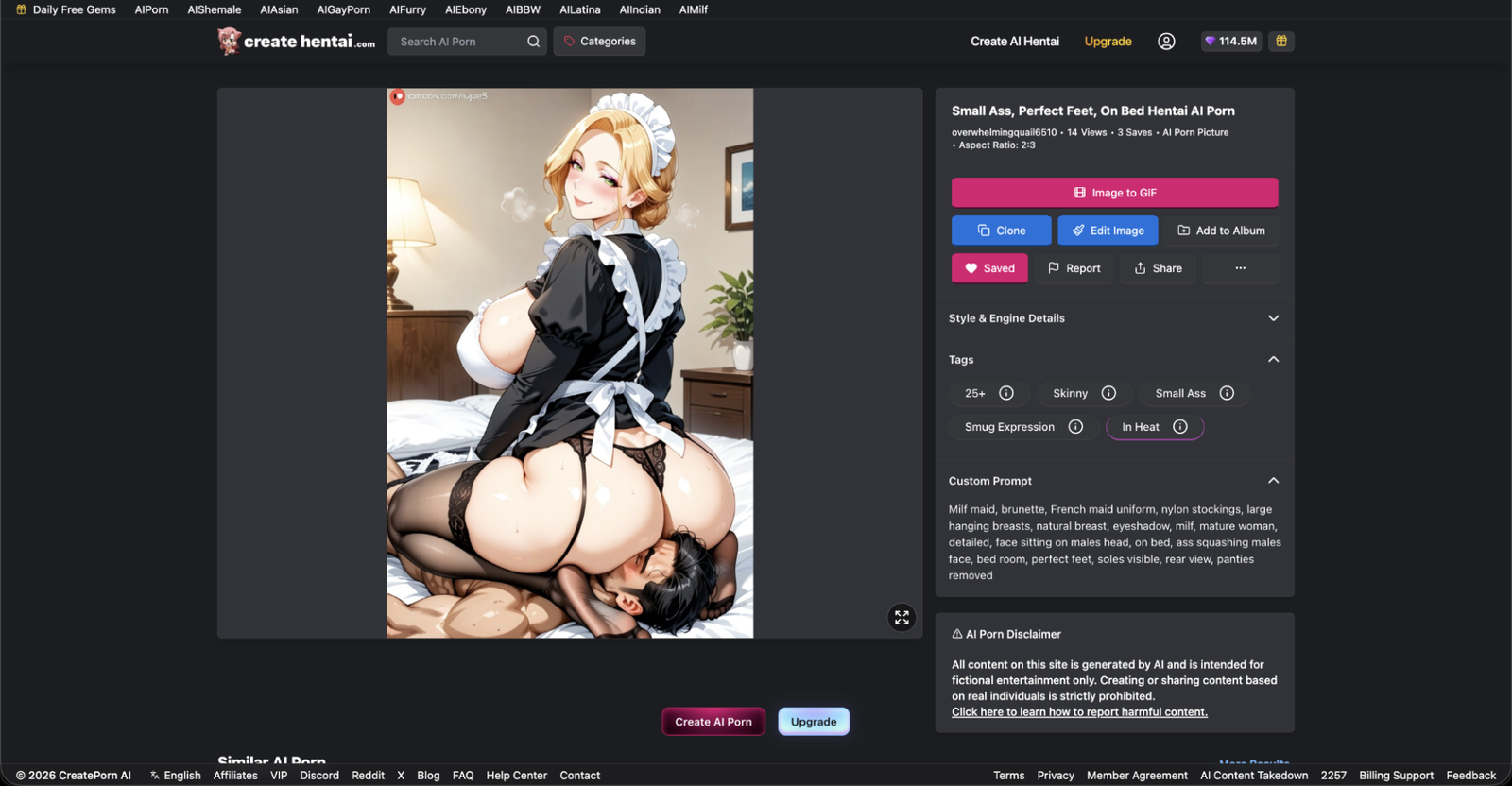
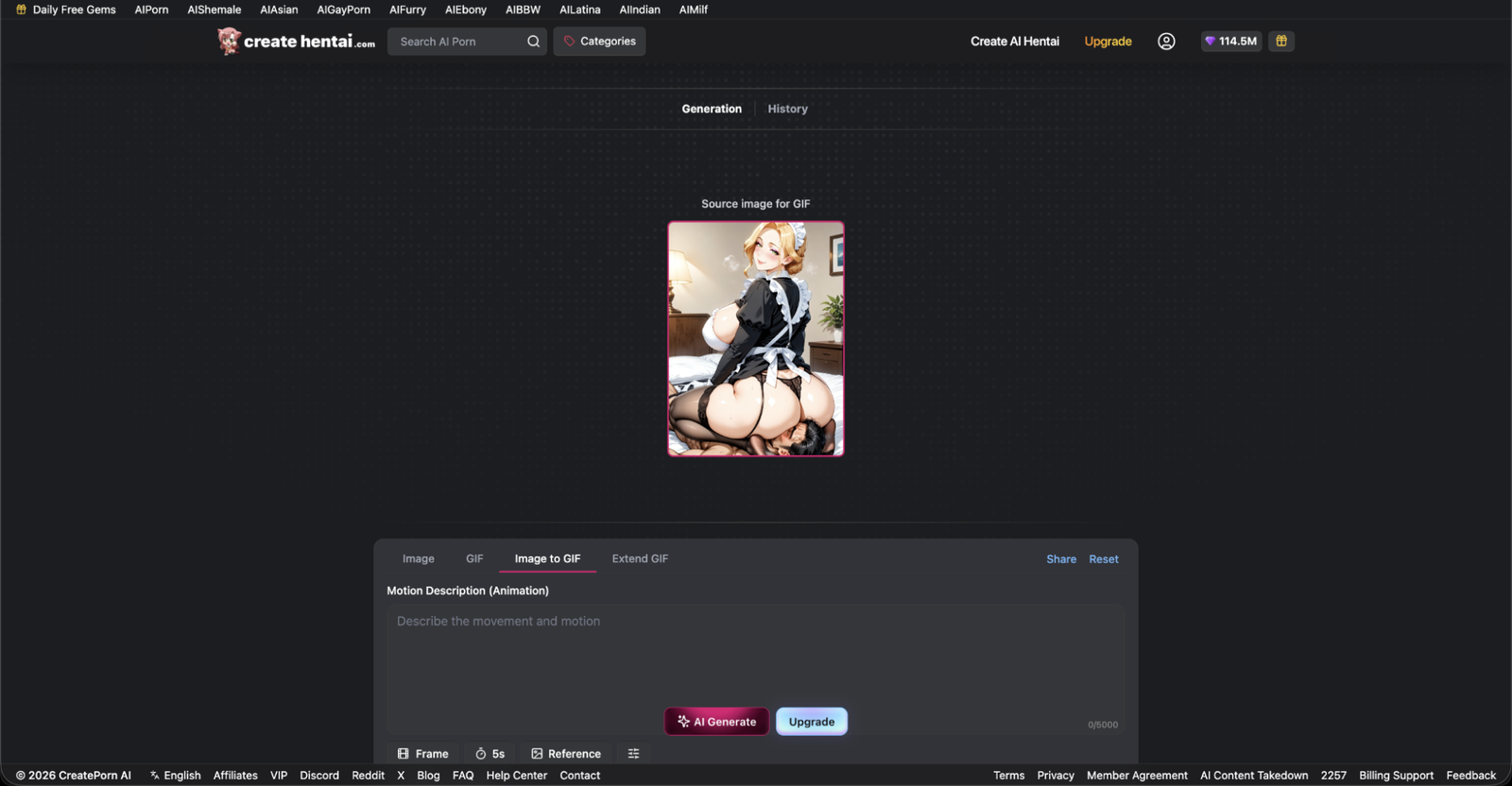
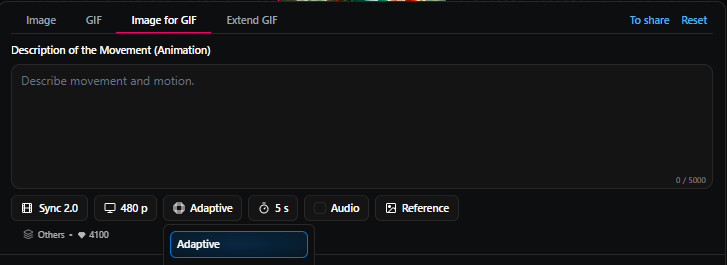
Open the selected image to access Image to Gif. From there, choose an Engine, enter the video prompt, and adjust the available settings.
The product currently uses “Image to Gif” in this workflow, while the Zendesk article discusses the generated result as video. Interface labels and available controls can change, so follow the wording displayed in the live product.
4. Choose an Engine That Matches the Goal
Do not choose an Engine only because it is more advanced or more expensive. Match the Engine to the type of result you need.
Frame
Frame is designed for simple, silent movement with minimal scene development. It does not generate audio and provides minimal scene control.
Motion
Motion supports general movement with audio while keeping the video relatively close to the selected image. It provides low-to-moderate scene control.
Motion 2.0
Motion 2.0 is suited to accurate body movement, repeated rhythm, and NSFW motion. It supports audio, although the current guide describes its sound capabilities as weaker than those of the Sync Engines. Scene control is moderate.
Sync
Sync is useful when the video requires voice, music, ambience, dialogue, or simple camera switches. It generates audio and provides moderate scene control.
Sync 2.0
Sync 2.0 offers stronger general quality, prompt accuracy, and scene control. It supports audio and provides moderate-to-high control over the scene.
Sync 2.0 Pro
Sync 2.0 Pro provides the most advanced scene development, cinematic direction, sound, and multi-shot structure described in the current guide. It supports audio and offers high scene control.
The official guide notes that Sync 2.0 Pro supports NSFW content but that Motion 2.0 is stronger for that specific type of motion. Engine names, capabilities, and Gem costs may change, so confirm the live selector before generating.
5. Understand Adaptive Aspect Ratio
For Sync 2.0 and Sync 2.0 Pro, the documented Adaptive setting automatically selects the most suitable supported aspect ratio rather than using one fixed ratio. The Zendesk guide does not describe this as a manual aspect-ratio selection workflow.
The current guide lists:
- 16:9 and 9:16
- 4:3 and 3:4
- 1:1
- 21:9
Prepare a source image whose framing suits the intended result. As general composition guidance, vertical framing can suit a standing subject, while wider framing can reveal more environment. Adaptive still determines the supported output ratio when that setting is used.
6. Write a Focused Video Prompt
For simple animation, use:
Subject + movement + camera control
Example:
A woman facing the camera slowly smiles and gently tilts her head, static camera, smooth motion, stable framing,
For a sound-enabled Engine, use:
Subject + movement + environment + camera movement + aesthetic + sound + constraints
Example:
A woman standing near a window slowly turns her head and smiles in a quiet room at night, the camera slowly pushes in, soft warm lighting, quiet room ambience, no dialogue, no background music,
Detailed prompts help when every detail supports the same action. Extra actions, conflicting camera directions, major scene changes, or incompatible sound instructions can make the result unstable or cause parts of the prompt to be ignored.
7. Add Audio Only When Supported
Frame does not generate audio. For another Engine, enable Audio and describe only the sounds that matter.
Useful audio categories include:
- Ambient sound: rain, wind, room tone, city noise, waves
- Dialogue: an exact short line, language, tone, emotion, and pace
- Voice without dialogue: breath, laughter, or another vocal behavior
- Music: genre, mood, intensity, or pacing
- Sound effects: a door, footsteps, fabric, or an environmental action
- Silence constraints: no dialogue, no voice, no background music
Place unwanted-audio constraints near the end of the prompt.
8. Generate One Test
Create one sample before repeating a prompt or committing more Gems. Review the result for:
- Subject identity
- Anatomy and pose stability
- Motion direction and speed
- Camera behavior
- Background continuity
- Lighting consistency
- Audio accuracy
- Unwanted people, text, voice, or music
If the first attempt fails, change the relevant instruction or choose a better-suited Engine. Repeating the same unsuccessful setup without a change is unlikely to explain what went wrong.
How to Write AI Video Prompts
Identify the Subject Precisely
When more than one person or moving object is visible, identify the intended subject by position, clothing, or pose:
- The woman on the left
- The man wearing the black shirt
- The subject seated beside the window
- The curtains behind the subject
This reduces ambiguity about what should move.
Describe One Main Action
Replace vague instructions such as “make the image move” with a visible action:
- Slowly turns her head toward the camera
- Raises one visible hand and waves
- Takes two controlled steps forward
- Smiles and blinks naturally
- Hair sways lightly in the breeze
- Chest rises and falls with natural breathing
Slow, continuous motion is generally easier to stabilize than a sudden or complicated action.
Define How the Motion Happens
Motion details describe speed, direction, range, and rhythm:
- Slowly
- Gently
- Smoothly
- With a small range of motion
- From left to right
- Forward and backward
- At a steady rhythm
- Repeated continuously
Compare:
She moves,
with:
She slowly turns her head toward the camera using a small, natural range of motion,
The second version gives the Engine a clearer action, direction, pace, and limit.
Keep the Environment Coherent
The setting can influence lighting, sound, atmosphere, and background movement. Use one clear environment that agrees with the source image.
For example:
Quiet bedroom at night, warm bedside lighting, soft rain outside,
is more coherent than combining a sunny beach, dark club lighting, falling snow, and indoor room ambience in the same short shot.
Choose One Visual Direction
Aesthetic instructions can describe:
- Soft warm lighting
- Natural colors
- Cinematic lighting
- Dreamy atmosphere
- Retro film appearance
- Dark dramatic mood
- Bright animated style
Avoid stacking incompatible directions such as warm golden light and cold monochrome color, or realistic cinematic detail and flat cartoon styling.
Finish With Relevant Constraints
Constraints describe what should remain stable or absent:
- Static camera
- Smooth motion
- Stable framing
- Consistent subject
- Keep the same composition
- No scene change
- No extra characters
- No camera shake
- No dialogue
- No background music
- No subtitles or text
Use the constraints that address a likely or observed problem. A long negative list can compete with the main action.
Multi-Shot AI Video Generation
Multi-shot prompting describes a sequence of actions or camera changes in order. The dedicated multi-shot section and formula table in
Createporn’s guide recommend it for:
- Sync
- Sync 2.0
- Sync 2.0 Pro
Sync is intended for simple camera switches. Sync 2.0 provides stronger multi-shot structure and scene movement. Sync 2.0 Pro is positioned for more ambitious cinematic sequences, scene development, and detailed sound direction.
Use this structure:
Shot 1: Starting frame + subject + movement + environment + camera + aesthetic + sound + constraints
Shot 2: Transition + subject + movement + environment + camera + aesthetic + sound + constraints
Shot 3: Final action + camera ending + sound + constraints
Example:
Shot 1: Medium shot of a woman sitting beside a window as rain falls outside, she looks down quietly, fixed camera, soft room ambience,
Shot 2: The camera changes to a close-up as she raises her eyes and smiles, warm indoor lighting, no dialogue,
Shot 3: The camera slowly pulls back, quiet rain ambience, no background music,
Keep each shot focused on one action and one camera direction. Sequence order is generally more stable than forcing exact second-by-second timing. If a three-shot prompt fails, reduce it to two shots or simplify the actions.
Common AI Video Problems and Fixes
Troubleshooting AI Video Results
- Camera moves unexpectedly: Add static camera, fixed camera, or locked-off shot.
- Motion looks distorted: Reduce the speed, range, or number of actions.
- Anatomy becomes unstable: Use a clearer base image and request a smaller movement.
- The wrong subject moves: Identify the subject by position, clothing, appearance, or pose.
- Extra people appear: Add no extra characters.
- The scene changes: Add keep the same composition and no scene change.
- Part of the prompt is ignored: Remove secondary actions and simplify the prompt.
- An unwanted voice appears: Add no dialogue or no voice.
- Unwanted music appears: Add no background music.
- Multi-shot structure fails: Reduce the number of shots or use a stronger Sync Engine.
- The video stays too close to the image: Consider Sync 2.0 or Sync 2.0 Pro for greater scene development.
- NSFW motion is inaccurate: Simplify the camera instruction or consider Motion 2.0.
- Audio quality is weak: Simplify the sound request or use a Sync Engine.
Generation results can vary with the image, Engine, prompt, settings, and current model capabilities. Troubleshooting works better when one variable is changed at a time.
How to Improve AI Video Quality
Improve the Image Before Animation
Correct serious blur, distortion, anatomy errors, clutter, or lighting problems before generating motion. Video generation does not reliably repair every defect in the source.
Keep Motion Close to the Visible Pose
A seated subject can smile, turn, breathe, lean slightly, or move a visible hand. Asking that subject to stand, spin, and walk away requires the Engine to invent hidden body parts, new angles, and a different composition.
Match the Engine to the Task
Use Frame for simple silent animation, Motion for general sound-enabled movement, Motion 2.0 when rhythmic or NSFW body motion matters, and a Sync Engine when audio, camera changes, or scene development is important.
Reduce Complexity Before Increasing It
Begin with one subject action and one camera instruction. Add environmental motion, audio, or additional shots only after the basic movement works.
Treat the First Result as a Test
An unsuccessful generation provides useful information. If the pose changes unexpectedly, reduce the movement. If the camera drifts, lock it. If the sound is cluttered, simplify the audio request. If the Engine stays too close to the image, choose one intended for greater scene control.
Frequently Asked Questions
What is an AI video generator?
An AI video generator creates moving visual content from inputs such as a source image and written prompt. It generates a sequence of frames that develops the scene over time.
How does image-to-video AI work?
The source image establishes the initial subject, pose, environment, framing, and style. The prompt describes movement, camera behavior, atmosphere, and optional sound. The Engine generates later frames while attempting to preserve continuity with the source.
What is a frame in AI video generation?
A frame is one still image in a video sequence. Smooth video requires connected changes across frames and consistent visual details over time.
What is temporal consistency?
Temporal consistency is a general video-generation concept describing the preservation of identity, anatomy, clothing, background, lighting, and motion direction across consecutive frames. It is not a named Createporn setting.
Can AI animate any image?
An Engine can attempt to animate many images, but results are more stable when the image is sharp, coherent, well lit, and compatible with the requested movement. Distorted or ambiguous source images can produce unstable video.
Which Createporn Engines support audio?
The current Video Prompting Guide lists Motion, Motion 2.0, Sync, Sync 2.0, and Sync 2.0 Pro as sound-enabled. Frame is silent. Enable the Audio control when sound is required.
Which Engines are recommended for multi-shot prompts?
Createporn’s dedicated multi-shot section and formula table recommend Sync, Sync 2.0, and Sync 2.0 Pro.
Should a video prompt describe every detail?
No. Include details that support the same action and scene. Too many actions, camera movements, styles, or sound requests can compete and reduce stability.
Why does AI video anatomy change?
Large pose changes can require the Engine to invent body parts or angles that are hidden in the source image. Use a clearer image, request a smaller movement, and keep the action close to the visible pose.
Can AI video include dialogue and music?
Yes, when the selected Engine supports audio and Audio is enabled. Specify the spoken line, language, voice, mood, or music style clearly. Use no dialogue, no voice, or no background music when those elements are unwanted.
Why is my AI video prompt being ignored?
The prompt may contain unsupported instructions, competing actions, excessive camera movement, or a scene change that does not fit the image. Simplify the prompt, test one main action, and choose an Engine suited to the goal.
Start Creating AI Videos From Images
AI video generation is a combination of visual preparation, motion direction, Engine selection, and iteration. A strong source image gives the system a stable scene. A focused prompt explains what should change. The Engine determines how much motion, sound, and scene development can be attempted.
Start with one clear image and one natural movement. Keep the camera controlled, add sound only when supported, and generate one test before increasing complexity. When the foundation works, add environmental motion, cinematic direction, audio, or a short multi-shot sequence.
For Createporn’s current product instructions and Engine-specific recommendations, see the official Video Prompting Guide.