AI Image Upscaling Guide: Improve Resolution & Quality
Learn how AI image upscaling improves resolution, sharpness, and image quality, when to use 4x or 16x Upscale, and how to get better results.
On this page
Guide: Improve Resolution & Quality
AI-generated images can look great at their original size, but sometimes you need a larger and clearer version.
Maybe you want to see smaller details more clearly.
Perhaps you want a higher-resolution version for a larger display or print.
This is where AI image upscaling can help.
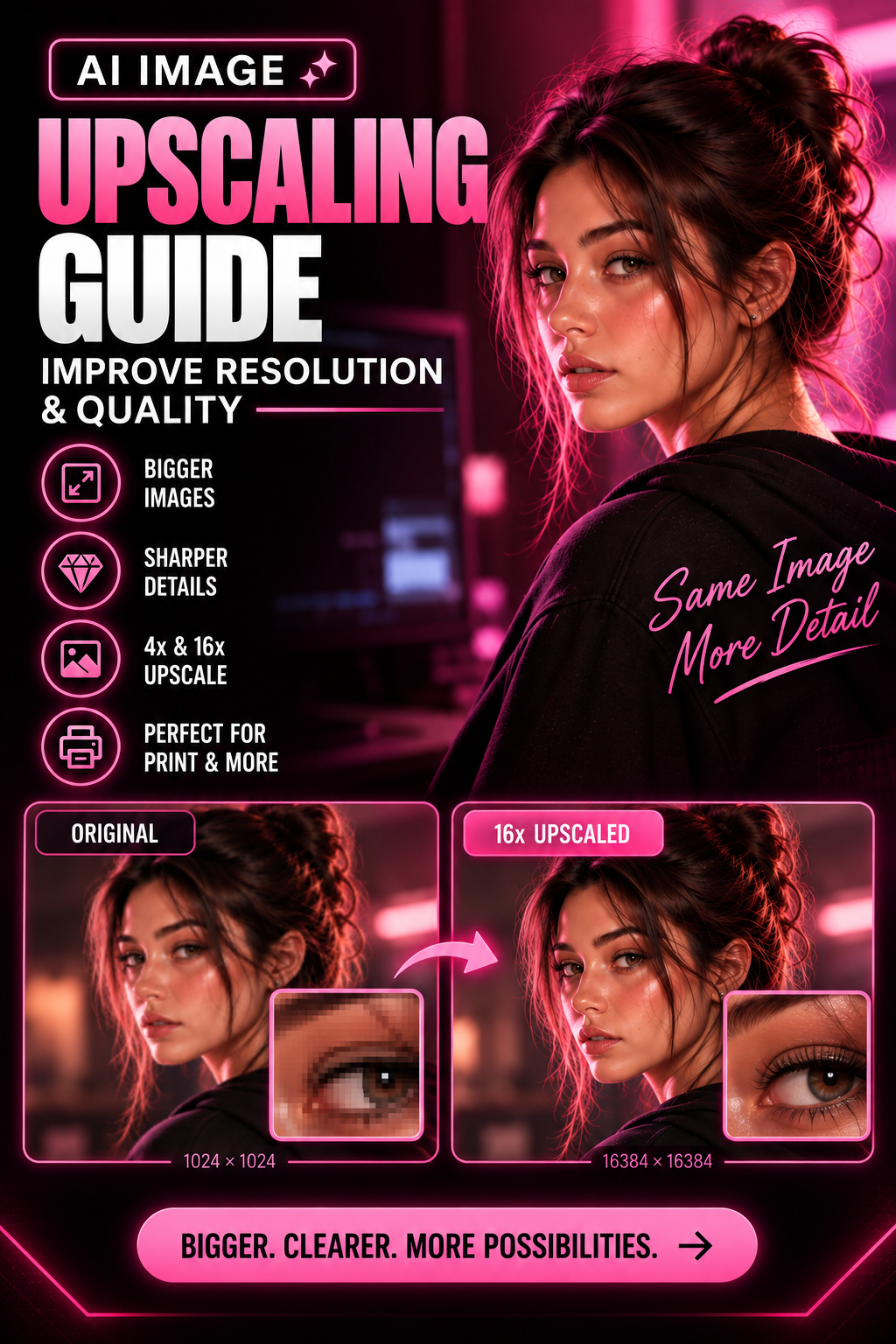
Upscaling increases an image's resolution and can improve its overall sharpness and clarity without requiring you to generate the image again.
It is especially useful when you already like the original image and simply want a larger, higher-resolution version.
→ Upscaler Feature LP
What Is AI Image Upscaling?
AI image upscaling is the process of increasing the resolution of an existing image.
Resolution refers to the number of pixels that make up an image.
Pixels are the tiny individual points of visual information used to display an image.
When an image has more pixels, it can contain more visual information at a larger size.
For example, upscaling an image can help make it more suitable for:
- Larger displays
- Closer viewing
- Higher-resolution artwork
- Printing
- Detailed image editing
- Saving a larger final version
Createporn currently provides 4x and 16x Upscale options for your own creations.
What Does Image Resolution Mean?
Every digital image has dimensions measured in pixels.
For example, an image might be:
1024 × 1024 pixels
The first number represents its width.
The second represents its height.
Higher-resolution images contain more pixels.
This means there is more room for visual detail when viewing the image at a larger size.
If you enlarge a smaller image without proper upscaling, it may begin to look:
- Blurry
- Soft
- Pixelated
- Less detailed
AI upscaling helps create a larger version while attempting to maintain or improve visual clarity.
How Does AI Upscaling Improve Image Quality?
Traditional enlargement increases the size of an image, but it cannot always preserve detail effectively.
AI upscaling uses image-processing technology to analyze the existing image while increasing its resolution.
This can help improve the appearance of:
- Fine details
- Edges
- Hair
- Clothing
- Textures
- Background elements
- Overall sharpness
The basic workflow looks like this:
Original Image
↓
AI Upscaling
↓
Higher Resolution
↓
Improved Clarity and Sharpness
The original composition stays largely the same.
The goal is to create a larger, clearer version of the image you already generated.
What Is 4x Upscaling?
A 4x Upscale provides a moderate increase in resolution.
This is useful when you want:
- A larger version of an image
- Better clarity
- More visible small details
- A moderate resolution increase
For many images, 4x is a useful first option when you simply want a cleaner and larger final result.
What Is 16x Upscaling?
A 16x Upscale provides a larger increase in image resolution.
Consider 16x when you need:
- A significantly larger image
- More resolution for large displays
- Higher-resolution artwork
- A larger file for printing or further editing
The best option depends on how you plan to use the final image.
If you only need a moderate improvement, 4x may be enough.
If you need a much larger result, try 16x.
When Should You Upscale an AI Image?
Upscaling works best when you already like the image.
For example, imagine you generate a character with:
- The right appearance
- The right pose
- Good lighting
- A strong background
- The style you wanted
There is no reason to generate another image simply because you want a larger version.
Instead, you can Upscale the successful creation.
Good reasons to use Upscale include:
You Want More Resolution
Use Upscale when the original image is good, but you need a larger version.
You Want to See Small Details More Clearly
Upscaling may make details such as hair, clothing, textures, and background elements easier to see.
You Want a Larger Final Artwork
Higher-resolution images are more suitable for situations where the creation will be displayed at a larger size.
You Want to Prepare an Image for Printing
A higher-resolution version can be more useful when preparing artwork for print.
How to Upscale an AI Image
The process is simple.
Step 1: Choose Your Image
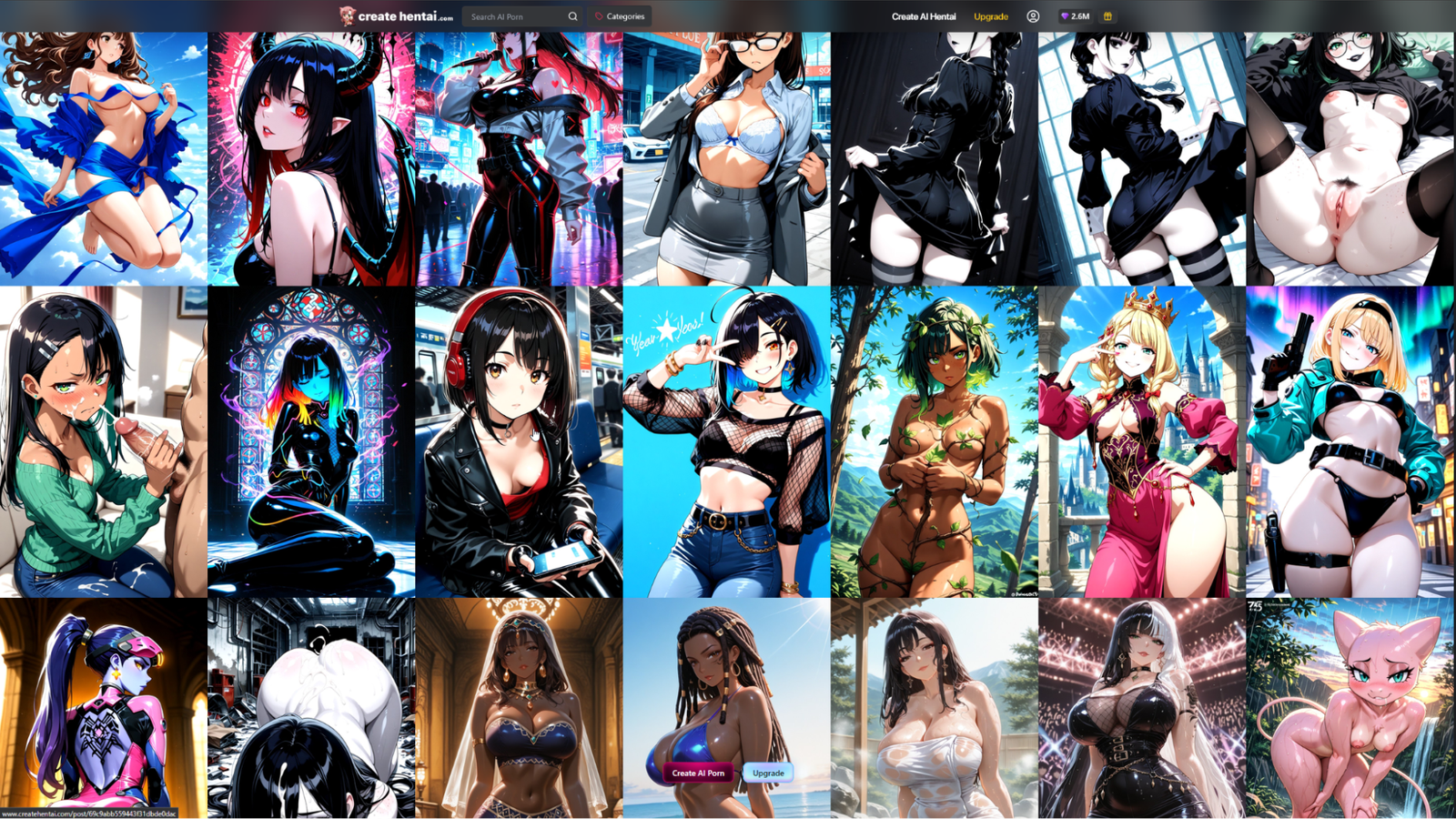
Start with a creation that you already like.
You can upscale a newly generated image or open one of your previous creations.
Step 2: Select Upscale
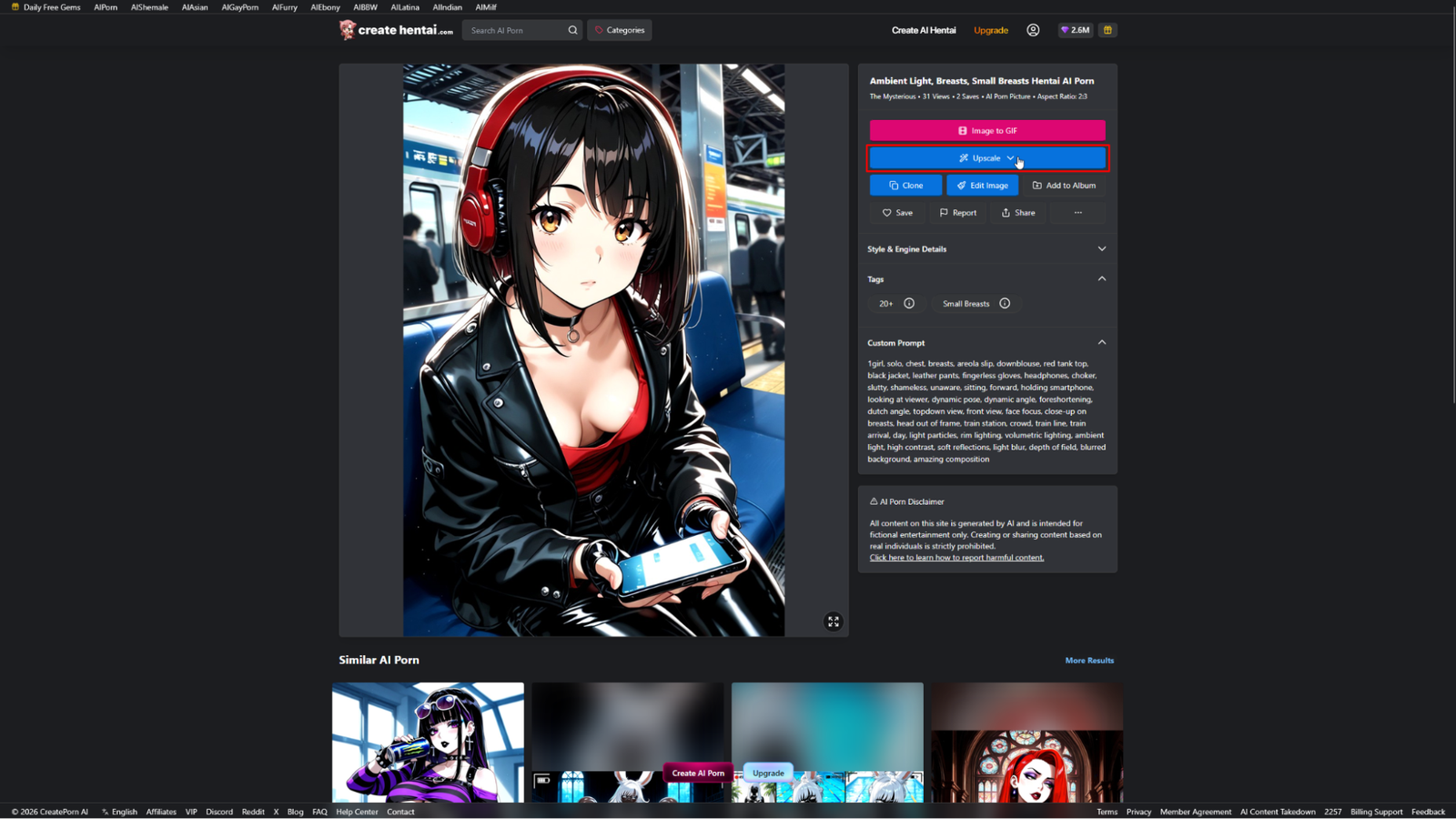
Choose the Upscale option.
Step 3: Choose 4x or 16x
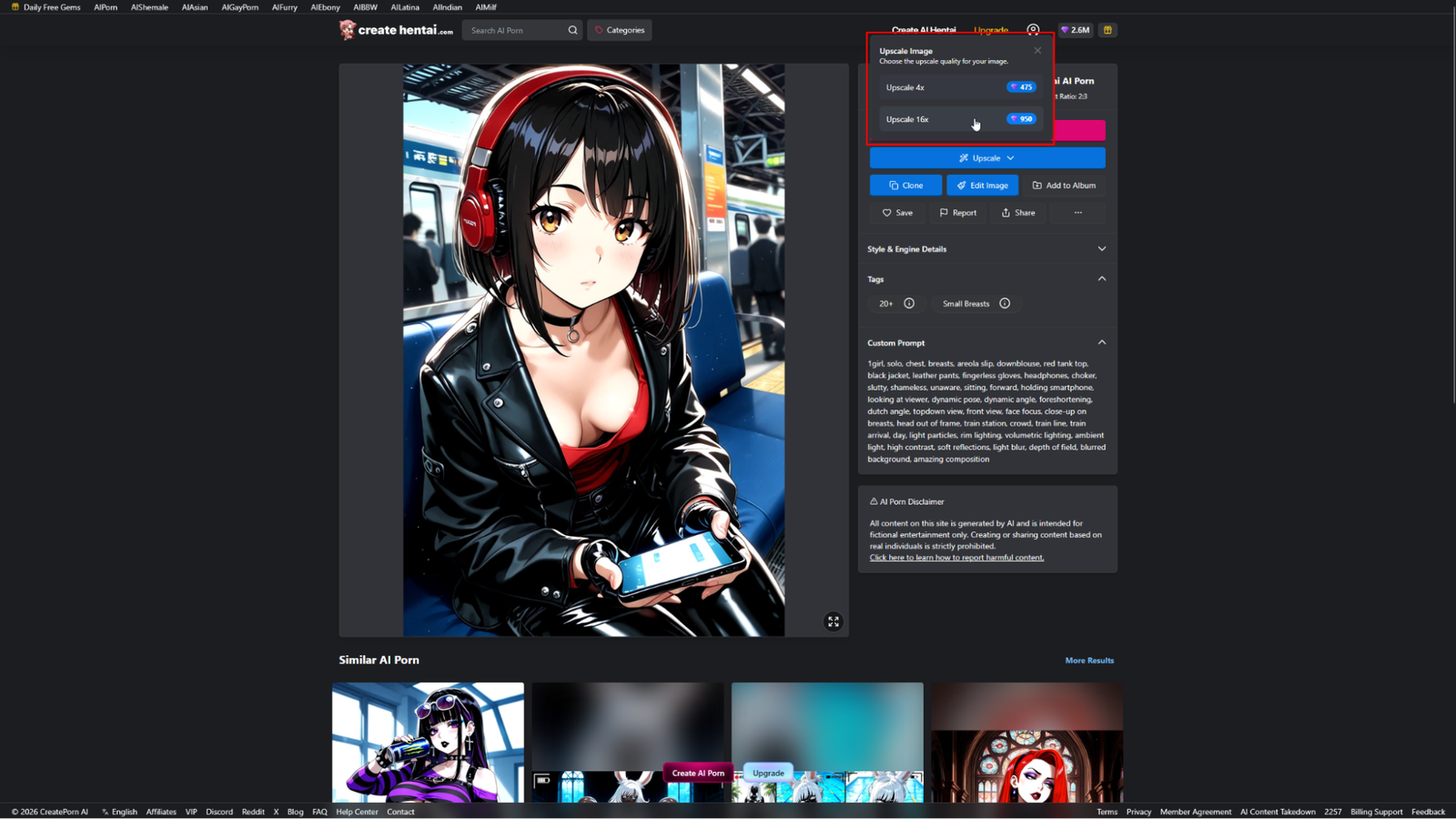
Select the amount of upscaling you need.
Use:
4x for a moderate resolution increase.
16x for a larger, higher-resolution version.
Step 4: Generate the Upscaled Version
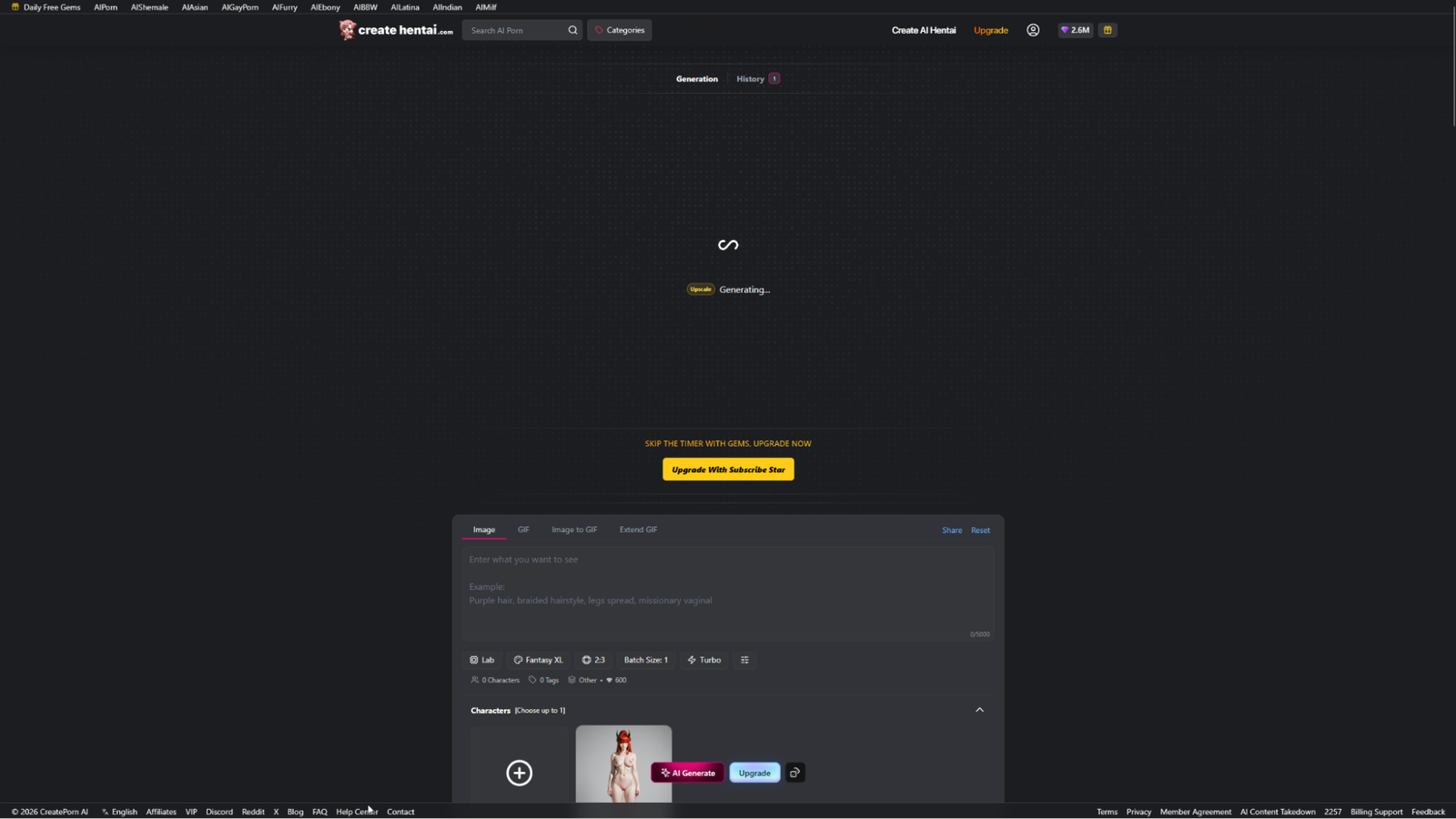
Allow the Upscale process to complete.
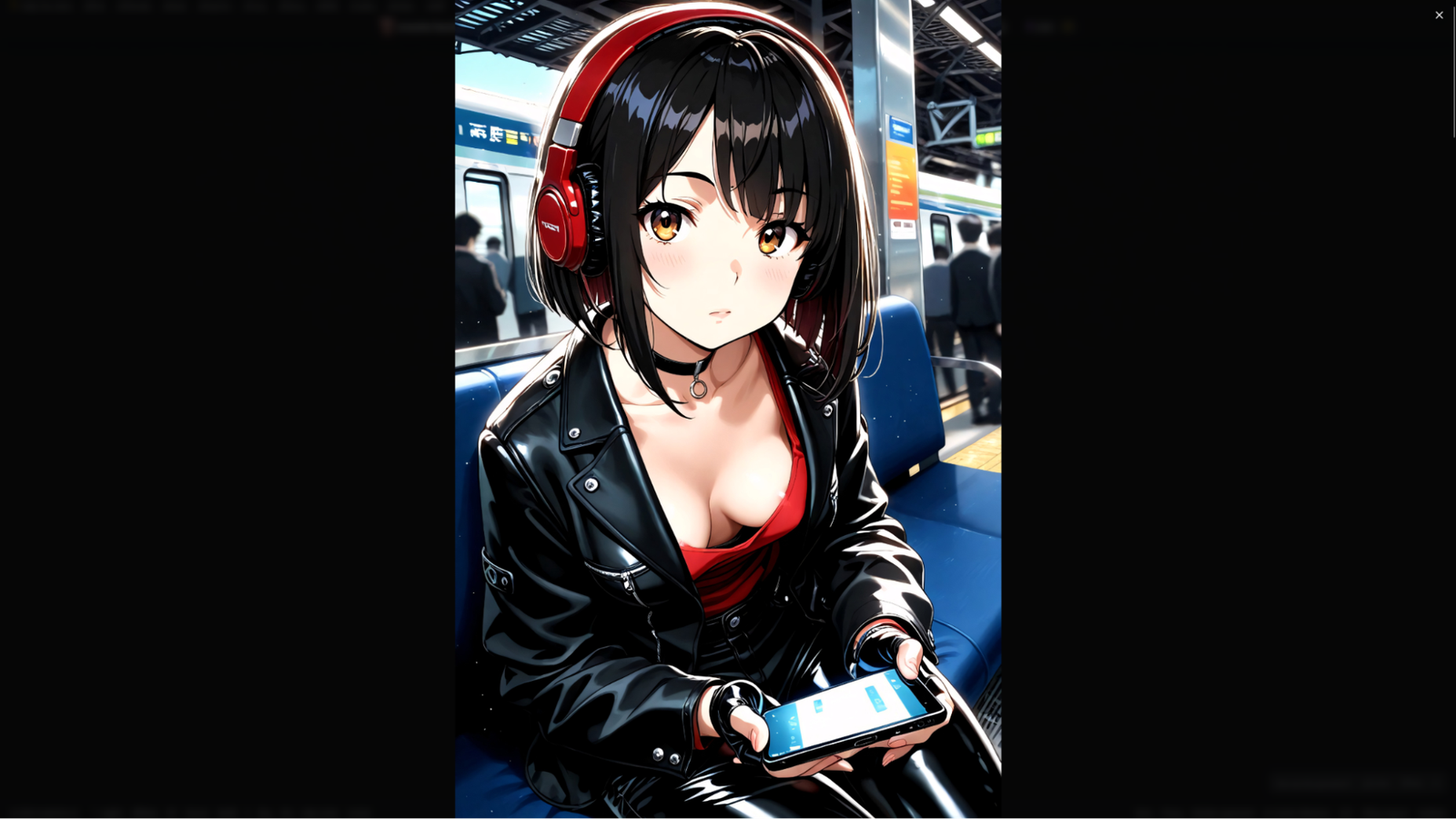
The resulting image will have a higher resolution than the original creation.
What AI Upscaling Can Improve
Upscaling is especially useful for improving the presentation of an already successful generation.
It can help with:
Sharpness
Edges and visual details may appear clearer at the higher resolution.
Fine Details
Small features in clothing, hair, backgrounds, and textures can become easier to view.
Image Size
You receive a larger version without recreating the entire scene.
Final Presentation
Higher resolution can make finished artwork more suitable for larger displays or other creative uses.
→ AI Image Editing Guide
What AI Upscaling Does Not Fix
Upscaling improves resolution and clarity, but it does not solve every generation problem.
For example, if the original image contains:
- Incorrect anatomy
- An unwanted object
- The wrong clothing
- An incorrect pose
- A major facial issue
- The wrong background
Simply increasing the resolution may make those problems larger rather than correcting them.
Different tools are better suited to different problems.
Need More Resolution?
Use Upscale.
Need to Change One Part of an Image?
Use an image-editing tool such as Inpainting or Magic Edit.
Need a Completely Different Image?
Create a new generation.
→ AI Image Generator LP
Upscaling vs. Image Editing
Upscaling and image editing serve different purposes.
Upscaling
- The image already looks correct
- You want more resolution
- You want greater sharpness
- You use it when: you want a larger version
Image Editing
Use editing tools when:
- An object needs changing
- Clothing needs adjusting
- Part of the background is wrong
- You want to modify a specific area
A useful workflow is to fix the image first and upscale it afterward.
This prevents you from spending time enlarging an image that still needs significant changes.
→ AI Image Editing Guide
A Better AI Image Workflow
For a polished final creation, follow this order:
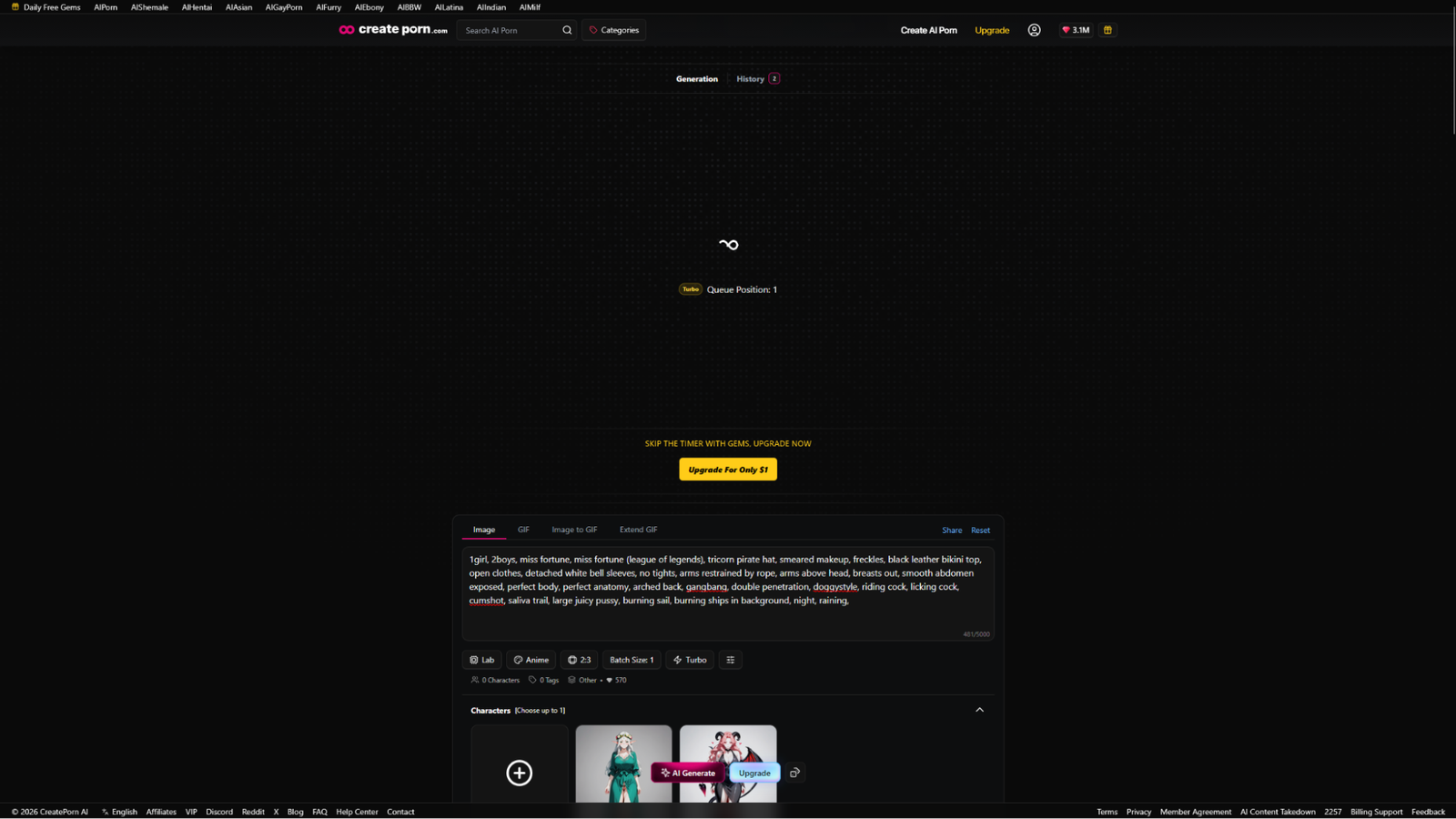
1. Generate the Image
Start by creating your main image.
2. Review the Result
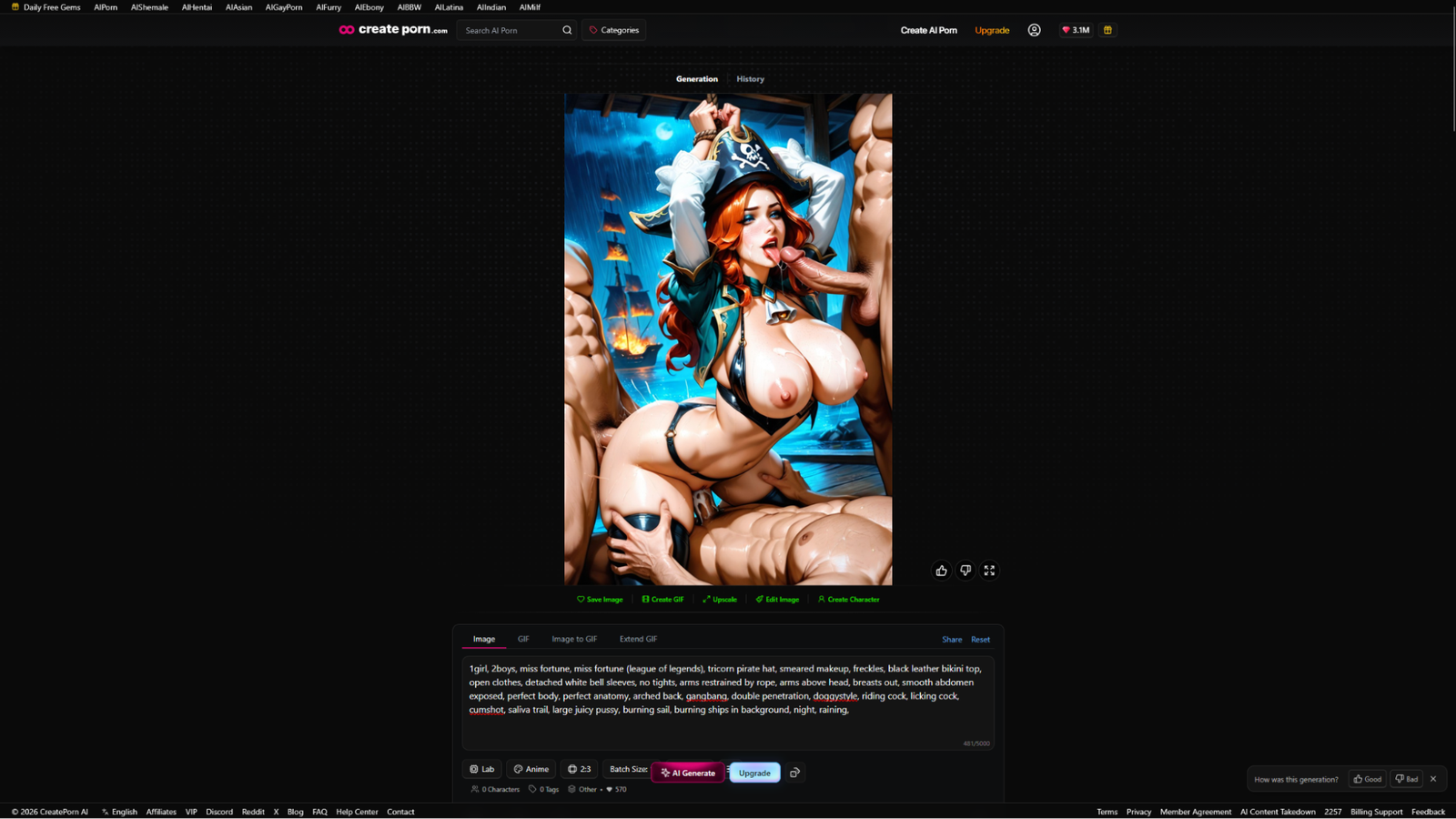
Check the:
- Character
- Pose
- Background
- Lighting
- Clothing
- Composition
3. Make Necessary Edits
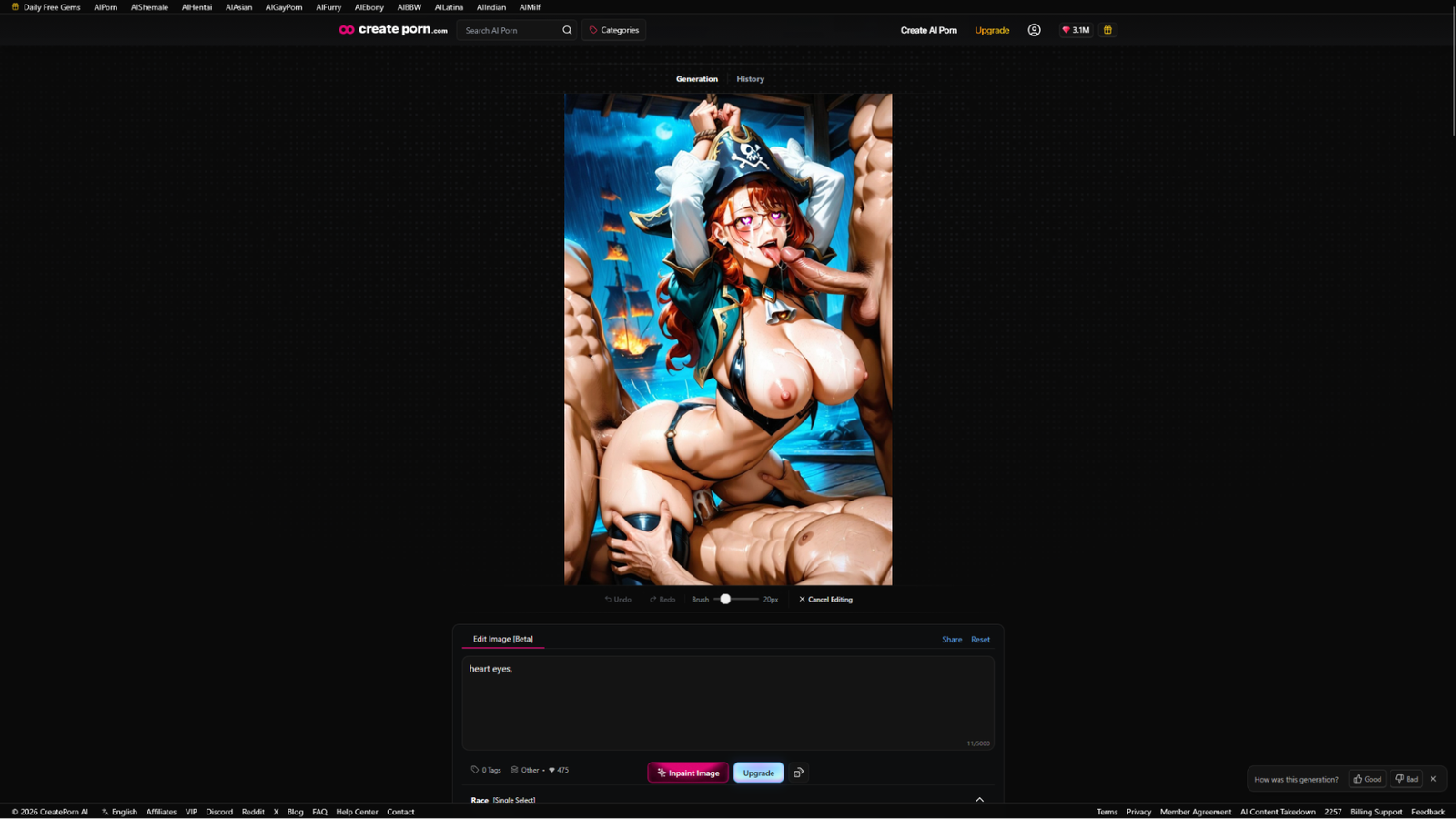
If something needs changing, edit the image before upscaling.
4. Choose Your Final Version
Make sure you are happy with the overall result.
5. Upscale
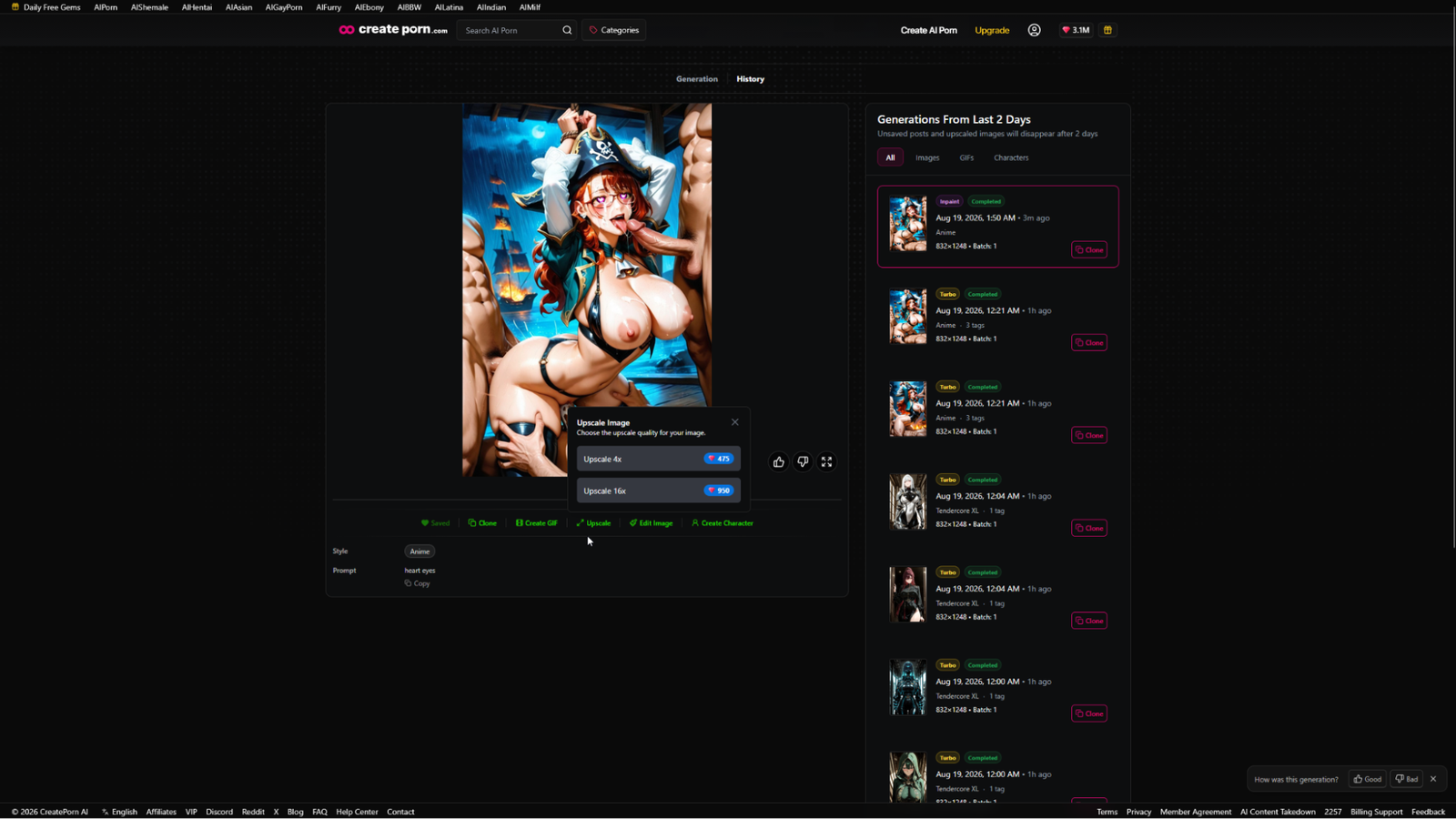
Choose 4x or 16x depending on the resolution you need.
This keeps the workflow efficient and helps ensure you upscale the version you actually want to keep.
Tips for Better Upscaling Results
Start With a Good Original Image
Upscaling works best when the underlying generation already looks good.
Fix Major Problems First
If the image contains an unwanted element or major generation issue, edit or regenerate it before upscaling.
Use 4x for Moderate Improvements
Choose 4x when you mainly want a larger and clearer version.
Use 16x When You Need More Resolution
Choose 16x when the final image needs to be significantly larger.
Review the Upscaled Result
Look closely at important areas such as:
- Face
- Hair
- Clothing
- Fine textures
- Background details
Make sure the higher-resolution version still matches the original creation you wanted.
Frequently Asked Questions
What is AI image upscaling?
AI image upscaling increases the resolution of an existing image while attempting to preserve or improve its visual clarity and sharpness.
Does upscaling improve image quality?
Upscaling can improve resolution, sharpness, and the visibility of smaller details.
What is the difference between 4x and 16x Upscale?
4x provides a moderate increase in resolution, while 16x creates a significantly larger, higher-resolution version.
Should I use 4x or 16x?
Use 4x when you need a moderate resolution increase. Use 16x when you need a much larger final image.
Can Upscale fix distorted images?
Upscaling is designed to improve resolution and sharpness. It may not correct major generation problems such as distorted anatomy, incorrect poses, or unwanted objects.
Should I edit or upscale first?
If the image needs changes, edit it first. Once you are satisfied with the image, upscale the final version.
Can I upscale someone else's creation?
No. The current Upscale feature can only be used with your own creations.
Create Higher-Resolution AI Images
A successful AI image does not need to be regenerated just because you need a larger version.
AI upscaling lets you take a creation you already like and increase its resolution and sharpness.
Use 4x when you need a moderate increase.
Use 16x when you need a larger, higher-resolution result.
For the best workflow, generate your image, make any necessary edits, choose your final version, and then Upscale it.
→ Upscale Your AI Images